


RFEM/RSTAB BIM link for steel member design (EN) - OLD
1 How to activate the link
- Install the latest version of IDEA StatiCa
- Make sure you are using a supported version of RFEM/RSTAB
- You need to have the COM module installed in RFEM/RSTAB to create the BIM link with IDEA StatiCa.
IDEA StatiCa automatically integrates the BIM link into your CAD/CAE software during its installation. You can check the status and activate more BIM links for other software installed later in the BIM link installer.
Open IDEA StatiCa and navigate to the panel BIM and open the BIM link installer. A notification "Run as administrator" may appear, please confirm with the Yes button.
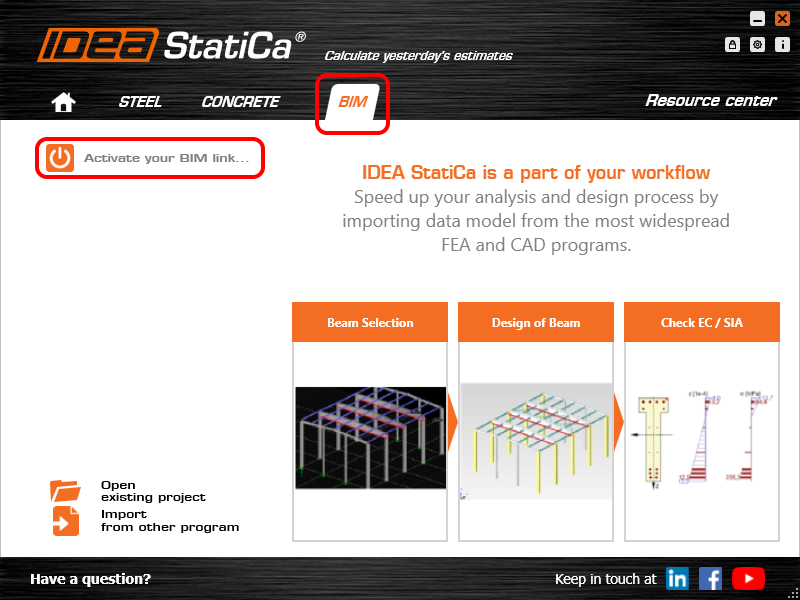
Select the software to integrate the IDEA StatiCa BIM link, click the Install button and check the status.

Note: RFEM/RSTAB BIM link provides importing only under the Eurocode (EN) standard.
2 How to use the link
First, open the source file RFEM.rf5 from the provided files for download (at the bottom of this tutorial) and open it in RFEM/RSTAB. There navigate to menu Add-on Modules then External Modules and run IDEA Statica Steel (for RFEM6/RSTAB9 use this process).

The Code-check manager opens and you can start the import process. Select one beam or column in the RFEM/RSTAB model and click Member to import it for the analysis in IDEA StatiCa Member under the EN code.

The member is added to the list together with corresponding joints and by selecting it the wireframe model together with the tab of cross-sections is displayed. In this step, you can manage the imported load cases. Leave the default settings and start configuring the connections first.

3 Design
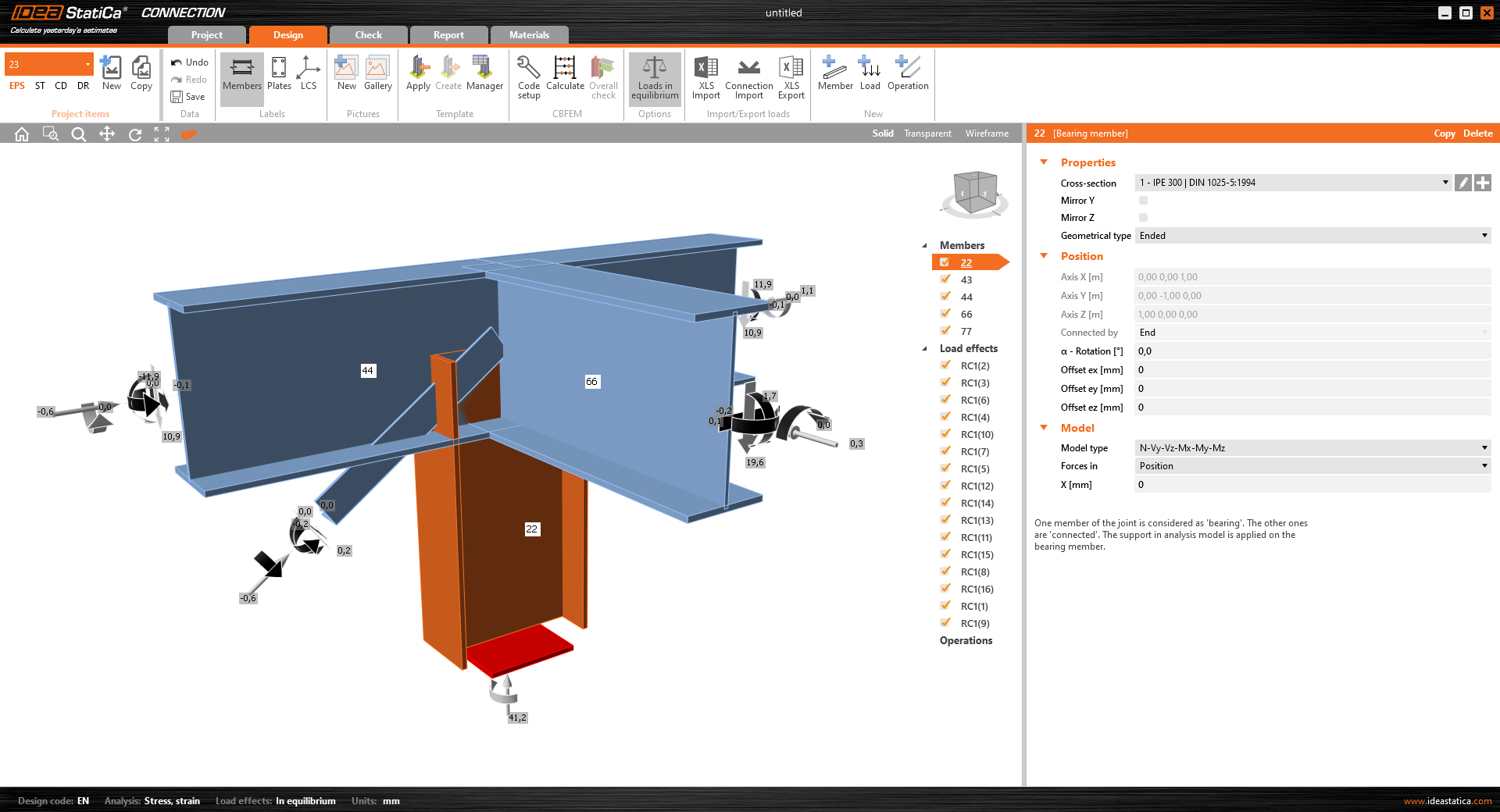
Select node 22 in the list, click Finish, and open it in the Connection module to configure the connections by following the tutorial BIM link tutorial Connection - RFEM/RSTAB (EN) from chapter 3 on.

After that, select node 23, again click Finish, and open it to design the connections.

Instead of designing all the connections of this joint by adding the operations, take advantage of the predefined template from the provided files for download in this tutorial.
Open the template Manager and import the template into your IDEA StatiCa template database.
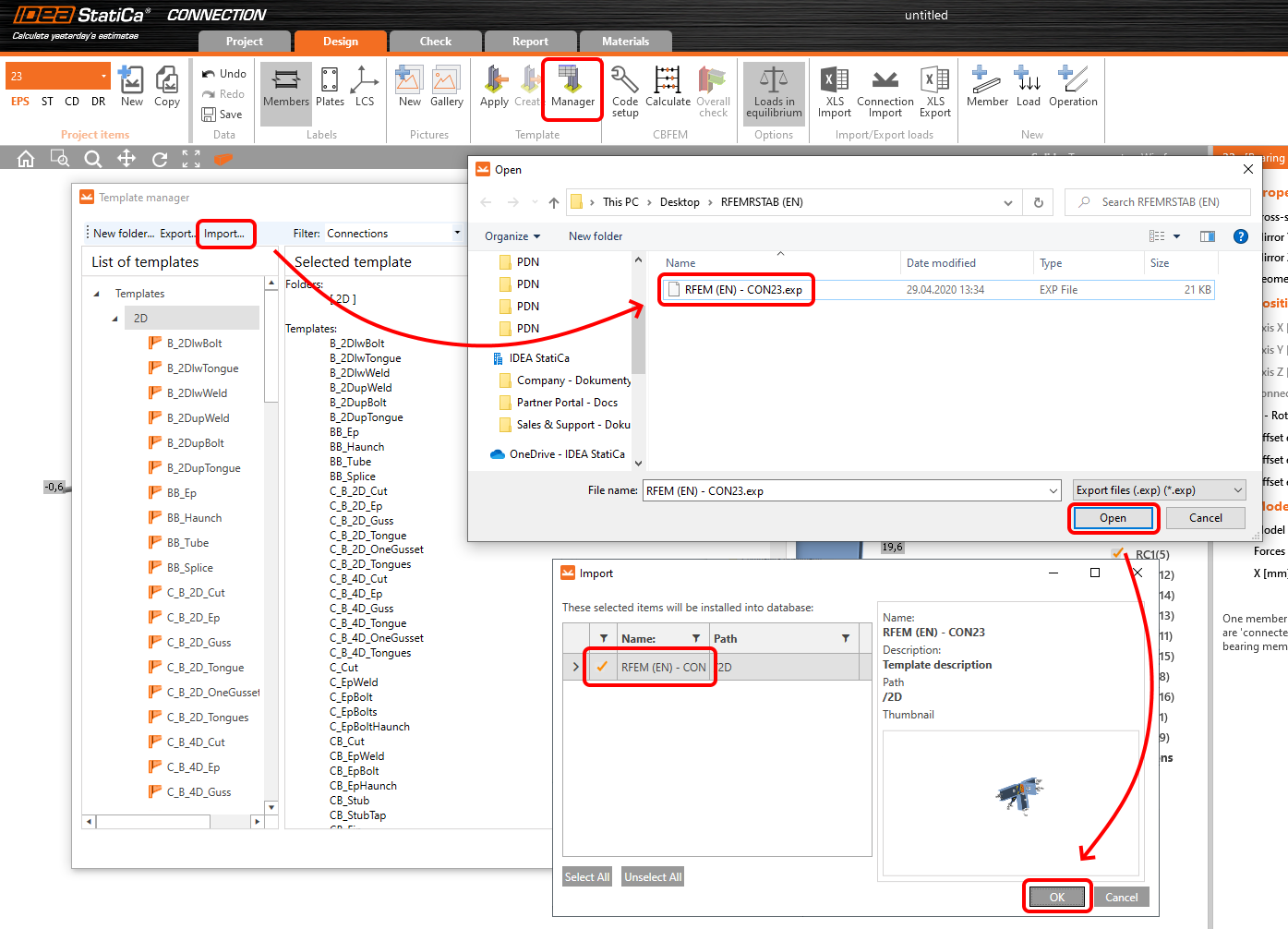
Then click Apply and select the template.

And select the default bolt assembly for this connection item.

The design template is applied and you can just click Save and close the Connection module, or you can run the analysis now and code-check the joint as well.

You have configured and designed both joints that are a part of the analyzed member. Now select the member in the list and click Finish.

And open it in the Member module.

All the data such as geometry and loads have been imported, and all connections have been already designed. The model is ready to be analyzed, but first, let's add some openings to the web of the member. Right-click on Operations in the tree menu and pick the operation Opening.

Edit the parameters of the operation, change the size and shape to N-gon (polygon with n sides) and multiply the openings number.

4 Check
Move to the Check tab, select the MNA (Materially Nonlinear Analysis) and start the analysis by clicking Calculate in the ribbon. The analysis model is automatically generated, the calculation is performed and you can see the overall check displayed together with basic values of check results.

In the next step, switch the CBFEM analysis type to LBA (Linear buckling analysis) and run the analysis again by clicking Calculate.

When the analysis is finished, you can browse the buckling shape factors in the tab, and by selecting some, e.g. buckling shape 1, you can see it visualized in the 3D window. Selecting the Uy results display highlights the deformation trend.

Now you can calculate the GMNIA (geometrically and materially non-linear analysis with imperfections). According to EN 1993-1-1, choose the most critical buckling shape or a combination of buckling shapes and input the initial imperfection of the critical beam. In this case, buckling shape 1 is the most critical one. Switch to the GMNIA tab in the right panel and determine the imperfection of 10 mm (0,5xL/300 = 0,5*6000/300 = 10 mm) to type in as the Amplitude in column 1. Click the Calculate button, for this analysis, the calculation may take several minutes.

The member passed the code-checks with applied initial imperfections and we can browse the results such as stress distribution and internal forces diagram.

5 Report
At last, go to the tab Report. IDEA StatiCa offers a fully customizable report to be printed out or saved in .doc editable format.

You have imported a member from RFEM and designed and code-checked it according to Eurocode (EN).
6 Synchronize models
Save the project in IDEA StatiCa Member and close it. All structural details imported from RFEM/RSTAB project to IDEA StatiCa are kept on the list. The Code-check manager provides useful commands for further processing of the imported items.
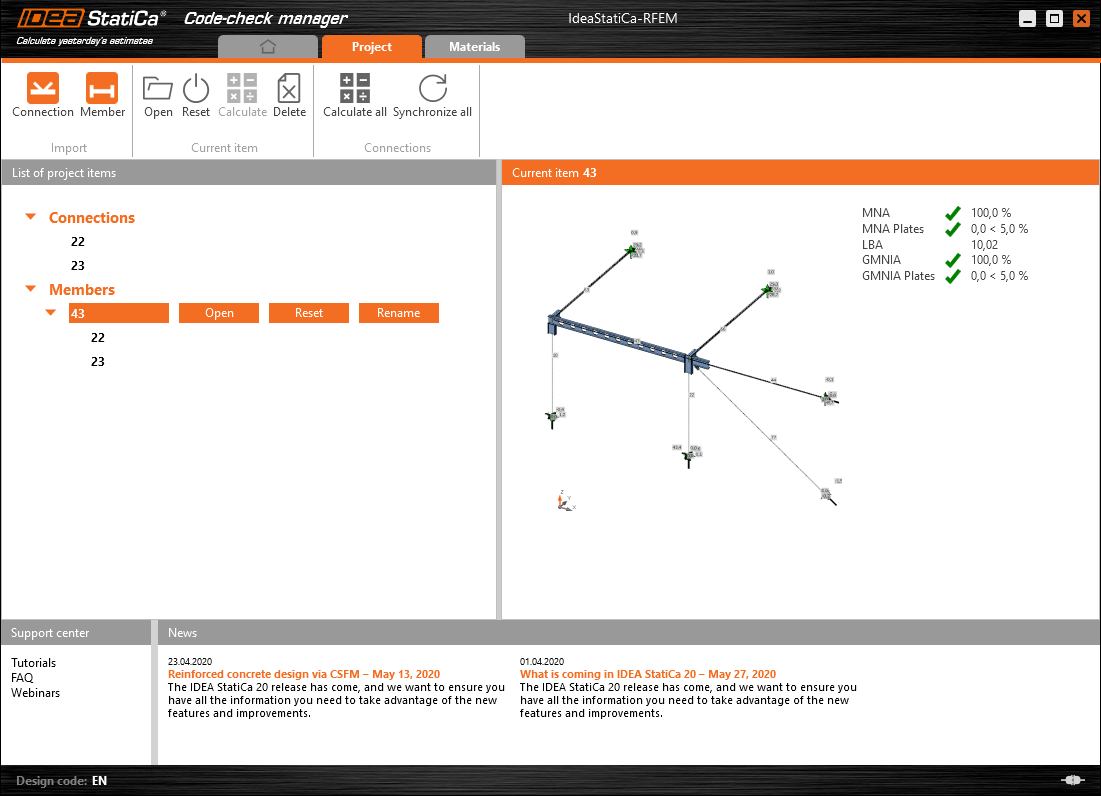
To demonstrate the synchronize function, change the cross-section of the analyzed member.

Then, recalculate the project in RFEM/RSTAB and open the Code-check manager again.
Select the member from the list and click Synchronize all.
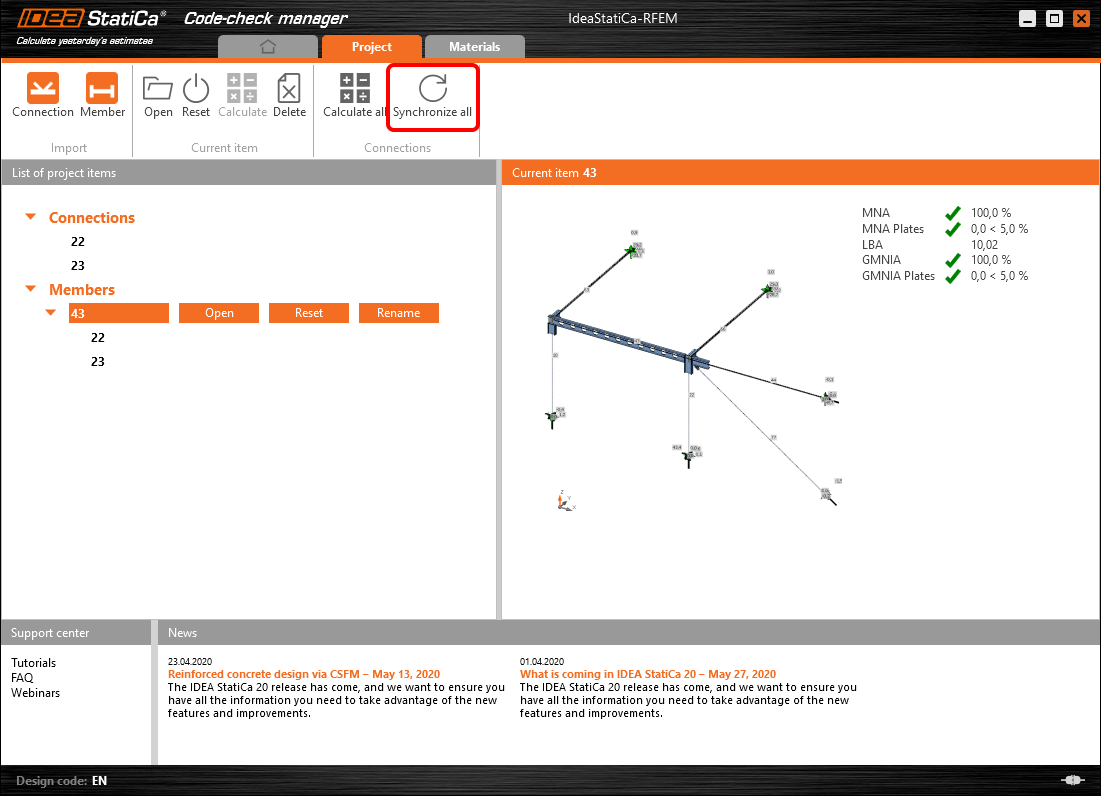
The geometry and load effects were updated and you can click Open to check the project item.

IDEA StatiCa opens and you can see the updated geometry while the design operations keep the settings.

You can check and adjust the design, recalculate and code-check the member, save and close it. Then you can continue importing and code-checking more joints or members.
Limitações conhecidas para RFEM/RSTAB
Por enquanto, a ligação funciona para uma grande variedade de ligações/juntas. No entanto, tenha em conta as funcionalidades ainda não suportadas.
Limitação: Não é possível exportar um elemento com uma extremidade em mísula ou outro tipo de extremidade cónica ou de forma especial.
Solução alternativa: A mísula é ignorada e pode ser modelada posteriormente no IDEA StatiCa
Limitação: A exportação de uma ligação num elemento contínuo sem nó intermédio não funciona.
Solução alternativa: Adicione o nó intermédio utilizando o comando para elementos "Divide Member Using n Intermediate Nodes". A opção "Place/Create new nodes without dividing it" para manter o elemento contínuo funcionará apenas no RFEM 5. A aplicação Checkbot reconhece apenas o tipo de nó "Standard"; os tipos de nó "On Member" ou "On Line" não serão reconhecidos.
RFEM 6:

RFEM 5:

Limitação: A exportação de um nó quando a definição de visualização "Sets of member" está ativada pode originar transferência incorreta de dados para algumas secções transversais de elementos e importação de elementos extra ou uma mensagem de erro.
Solução alternativa: Desative "Sets of member" e repita a exportação do nó.
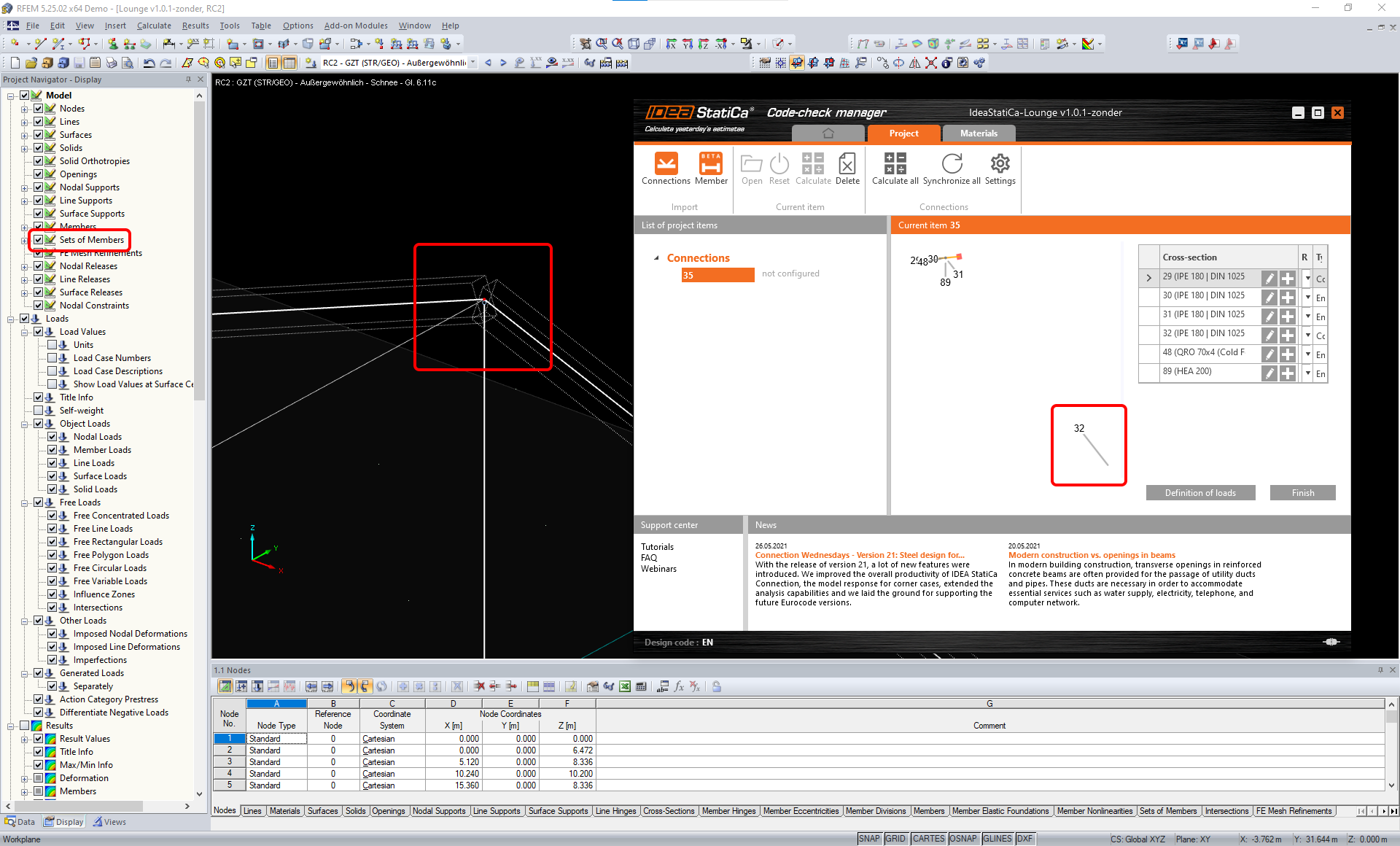
Limitação: Excentricidade geométrica – o nó da junta não se encontra no ponto central.
Solução alternativa: O RFEM/RSTAB oferece várias formas de introdução de excentricidades. A introdução de excentricidade utilizando as coordenadas locais x,y,z causa dificuldades na transformação dos dados para o IDEA StatiCa devido à variedade de opções de sistemas de coordenadas no RFEM/RSTAB. Nesse caso, utilize em alternativa a introdução de excentricidade com as coordenadas globais X,Y,Z.

Limitação: O objeto "Joint" não é suportado para a transferência de dados e bloqueia a importação da geometria e das ações das ligações para o Checkbot.
Solução alternativa: Elimine os objetos "Joint", recalcule o modelo e importe as ligações.

Limitação: A importação de casos de carga dinâmica e combinações de ações contendo cargas dinâmicas não é suportada.
Solução alternativa: Altere a definição dos casos de carga dinâmica no RFEM/RSTAB para caso de carga padrão com cada direção de amplitudes separadamente, ou introduza os esforços internos no IDEA StatiCa manualmente ou utilizando a importação XLS.

Limitação: A importação de LCS não padrão não é suportada.
Solução alternativa: Utilize apenas as definições suportadas dos Eixos Locais xyz.
Consulte a figura:
- verde = definições suportadas
- vermelho = definições não suportadas

Limitação do RFEM5/RSTAB8: Casos de carga atribuídos a vários grupos de carga para diferentes Combinações de Resultados.
Isto significa que no IDEA StatiCa cada caso de carga é atribuído a apenas um grupo de carga para todas as combinações, enquanto no Dlubal um caso de carga pode ser atribuído a um grupo diferente em diferentes Combinações de Resultados.
Solução alternativa: Para todas as Combinações de Resultados, atribua sempre os casos de carga ao mesmo grupo de carga. Em alternativa, pode criar combinações exatas utilizando a ferramenta "Load Combinations".


Limitação do RFEM5/RSTAB8: Os efeitos de todos os casos de carga com o mesmo nome (ou seja, listados várias vezes na combinação de resultados) são somados com o coeficiente correspondente no Checkbot. Isto pode levar à duplicação de determinados casos de carga (por exemplo, 1*LC7 +1*LC7=2*LC7) e ao cancelamento de outros casos de carga na combinação (por exemplo, 1*LC9 -1*LC9= 0*LC9)!
Solução alternativa: Não utilize os mesmos casos de carga na mesma Combinação de Resultados mais do que uma vez no RFEM ou RSTAB. Se pretender utilizar o grupo de carga no RFEM e RSTAB e atribuir o mesmo caso de carga a uma Combinação de Resultados uma vez com sinal positivo e outra com sinal negativo, faça-o de forma diferente com 2 Combinações de Resultados ou Combinações de Ações independentes.

Limitação: A referência a outras Combinações de Resultados em Combinações de Resultados não é suportada para importação no Checkbot.
Solução alternativa: Adicione casos de carga à Combinação de Resultados em vez de adicionar outra Combinação de Resultados.

Limitação: Os esforços internos não são importados para o Checkbot se os valores de resultado correspondentes estiverem desativados no Result Table Manager.
Solução alternativa: Abra Results → Result Table Manager e ative os valores necessários. Certifique-se de que as seguintes opções estão ativadas:
- Linhas: Member starts, Internal points, Member ends
- Colunas: Internal forces, Internal moments
