


SCIA Engineer BIM link for connection design (old)
1 How to activate the link
- Download and install (as administrator) the latest version of IDEA StatiCa
- Make sure that you are using the supported version of SCIA Engineer
IDEA StatiCa automatically integrates the BIM link into your CAD/CAE software during its installation. You can check the status and activate more BIM links for later installed software in the BIM link installer.
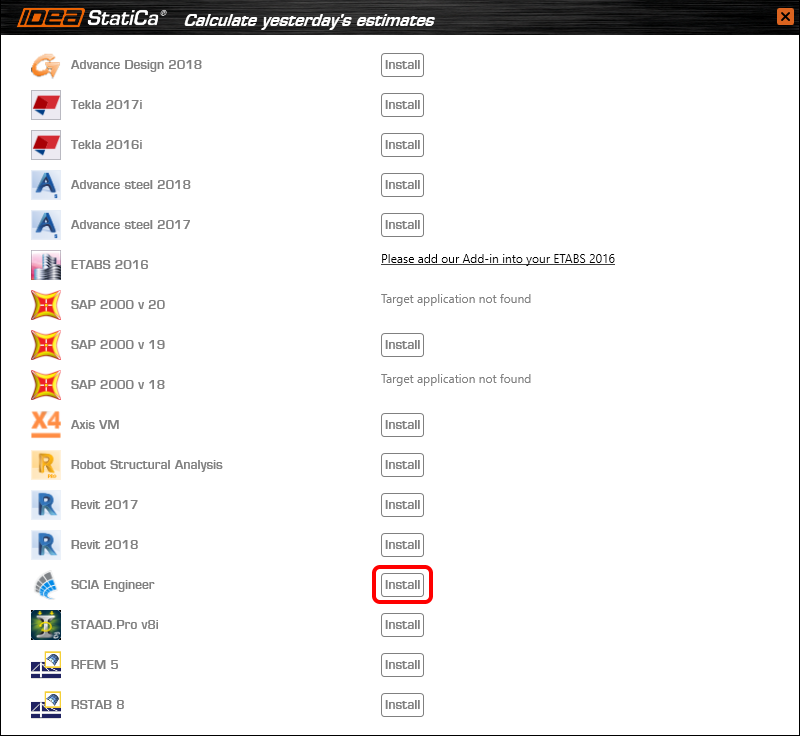
Open IDEA StatiCa and navigate to the panel BIM and open the BIM link installer. A notification "Run as administrator" may appear, please confirm with the Yes button.

Select the software to integrate the IDEA StatiCa BIM link, click the Install button and check the Installed status.
2 How to use the link
Download the attached project, open it in SCIA Engineer, and run the linear analysis to get the internal forces over the structure.
In the Main menu, go to the tab Steel.

Go to the IDEA StatiCa Connection menu. Add a joint to this SCIA Engineer project list of joints by selecting the members of a joint, then by clicking on Joint input and typing the name of it (name of the IDEA StatiCa Connection project file) and OK.

Open the command Check, run the command Export to IDEA Statica Connection in the Actions menu, and select the joint sign in the workspace.

Application IDEA StatiCa Connection opens and you can design connections of the joint.
3 Design
Joint geometry and load effects have been imported, you can start designing.

You will define a set of manufacturing operations to model connections between members. Hide the Load effects tree and right-click on Operations to add a new operation Cut.


In the next step add another manufacturing operation Endplate and modify its parameters.


Then add a Connecting plate operation and set its parameters for the appropriate member.


Right-click on the tongue plate, open the plate Editor and reshape the Tongue by adding an operation Rounding.


Next, you will again right-click on the gusset plate and in the Editor reshape the Gusset plate by adding a Bevel operation.


Now you can add a Stiffener operation and modify its properties.


Add another Cut operation for the upper member.


Again, use the Cut operation for the diagonals.


Copy the last cut operation and set it for the other diagonal.


In the next step add a Stiffener to the main column.


Finish the design by adding a Fin plate operation to connect the last member.


4 Check
You can start the analysis by clicking Calculate in the ribbon. The analysis model is automatically generated, the calculation is performed for all the load cases and you can see the Overall check displayed together with basic values of check results.

Go to the display tab Check and there activate Equivalent stress, Bolt forces, Mesh and Deformed and change the deformation scale in the ribbon to get a full picture of what is happening in the joint.

By default, you can see the For extreme results envelope of all the load effects, so the most unfavorable results are displayed all together. If you click on any item (e.g. the fin plate), it shows you which load effect is the most unfavorable for it in the ribbon.

You can also display and browse results for each load effect separately by changing the For the extreme option to For current in the ribbon.

5 Report
At last, go to the tab Report. IDEA StatiCa offers a fully customizable report to print out or save in an editable format.


You have imported a joint from SCIA Engineer and designed and code-checked it according to Eurocode.
6 How to update the project
Save the project and close the application Connection. All joints exported from an SCIA Engineer project to IDEA StatiCa are kept on the list as a part of the SCIA Engineer project file for later updates.
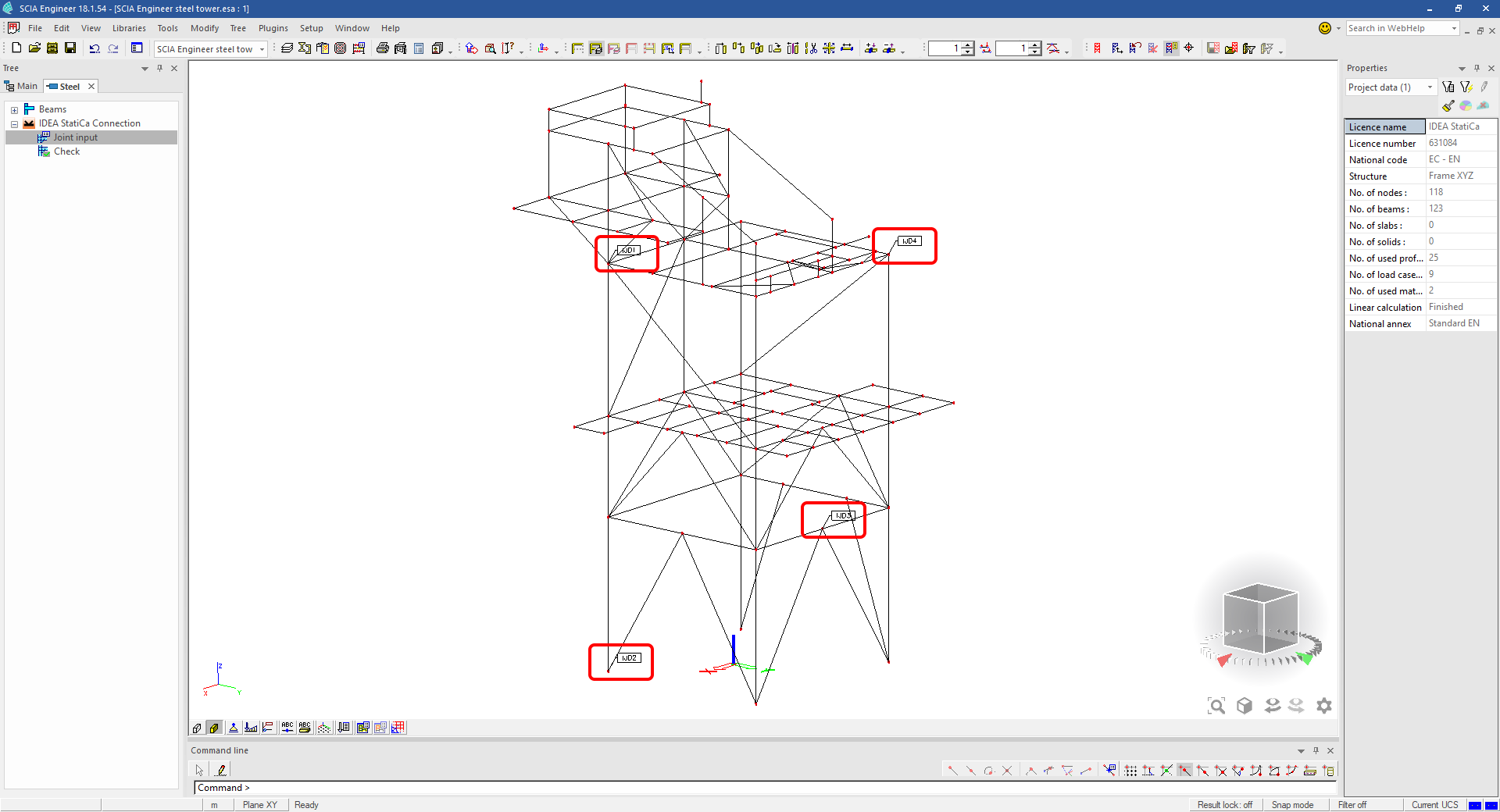
Note: In case you need to send a simple IDEA StatiCa file, you can "save as" a copy of the opened joint model to the desired folder
Go back to the SCIA Engineer model, change the cross-section of one of the diagonals, and start the Calculation of linear analysis again.

Open again the command Check, run the command Export to IDEA StatiCa Connection in the Actions menu, and select the joint sign in the workspace.

IDEA StatiCa opens and you can see the updated geometry while the design and settings adjust to the new state.

You can adjust the design, recalculate the joint code-check and save the project in IDEA StatiCa again and continue with exporting other joints.
Limitações conhecidas para SCIA Engineer
Limitação: As combinações não lineares não podem ser importadas para a aplicação IDEA StatiCa Checkbot.
Limitação: A rotação de elementos utilizando "α" não pode ser importada do SCIA Engineer para o Checkbot
Solução alternativa: Rode o elemento utilizando "LCS Rotation" em vez disso; a rotação dos elementos será importada corretamente.

Limitação: As mísulas modeladas no SCIA Engineer não são importadas para o Checkbot.
Solução alternativa: As mísulas têm de ser modeladas separadamente no IDEA StatiCa Connection utilizando Operações.

Limitação: A excentricidade modelada utilizando "member system-line at" não é importada na versão 25.0 e anteriores. A partir da versão 25.1.0, esta limitação foi removida e os elementos são importados com a linha de sistema definida.
Solução alternativa: A excentricidade deve ser definida através de um valor ez ou ey. A linha de sistema do elemento deve ser definida como "Centre".

Com a versão 21.1 do SCIA Engineer, a IDEA StatiCa introduziu outra opção de utilização da ligação BIM entre o SCIA Engineer e a aplicação Checkbot.
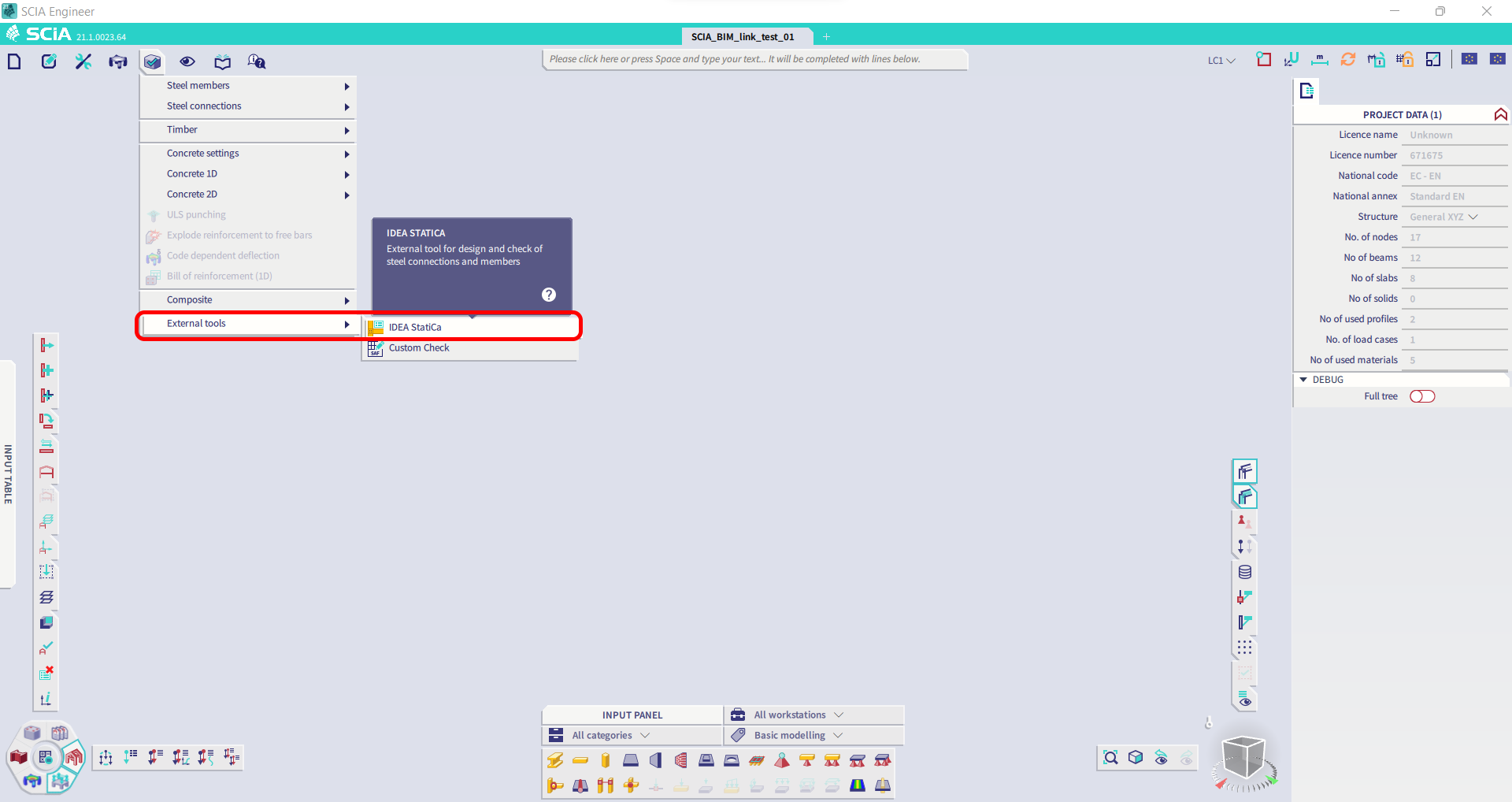
Limitação: Esta funcionalidade não está incorporada na versão Legacy do SCIA 21.1.
Solução alternativa: Utilize a interface padrão do SCIA 21.1.
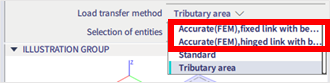
Limitação: O SCIA não consegue criar um ficheiro SAF utilizado para a comunicação Bimlink. O problema manifesta-se com o seguinte erro no Checkbot e com a seguinte mensagem ao exportar o modelo SAF diretamente do SCIA.

Solução alternativa: Para corrigir, altere a seleção do método de transferência de Tributary Area para Accurate (FEM).
NOTA IMPORTANTE: Na versão Scia Engineer 26.0, a exportação para SAF foi corrigida e a mensagem de erro apresentada acima deixou de aparecer.
Limitação: As combinações padrão não podem ser importadas para a aplicação IDEA StatiCa Checkbot.
Solução alternativa: No SCIA Engineer, decomponha as combinações em envolventes ou combinações lineares antes da exportação.

Limitação: Elementos com um tipo de LCS diferente de "Standard" fazem com que a exportação para o Checkbot falhe.
Solução alternativa: Quando o seguinte erro aparecer durante uma importação para o Checkbot.
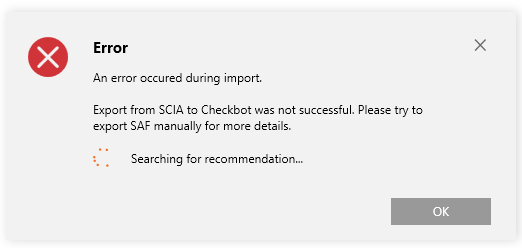
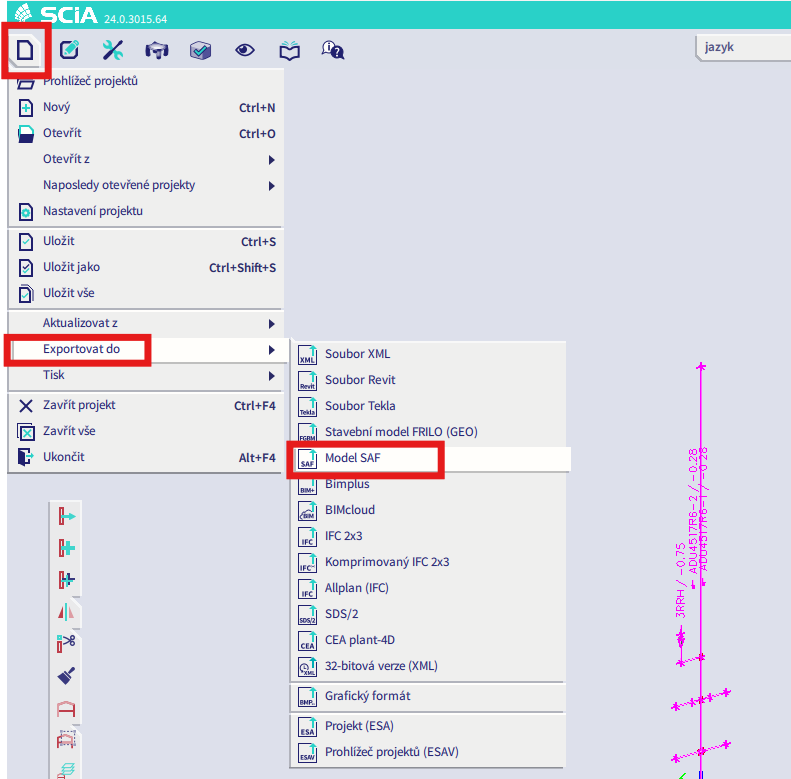
Navegue para o SCIA e efetue uma exportação manual do ficheiro SAF.
Se a exportação falhar, clique em "INFO" e as linhas superiores informam sobre os elementos que utilizam um LCS diferente de "standard".
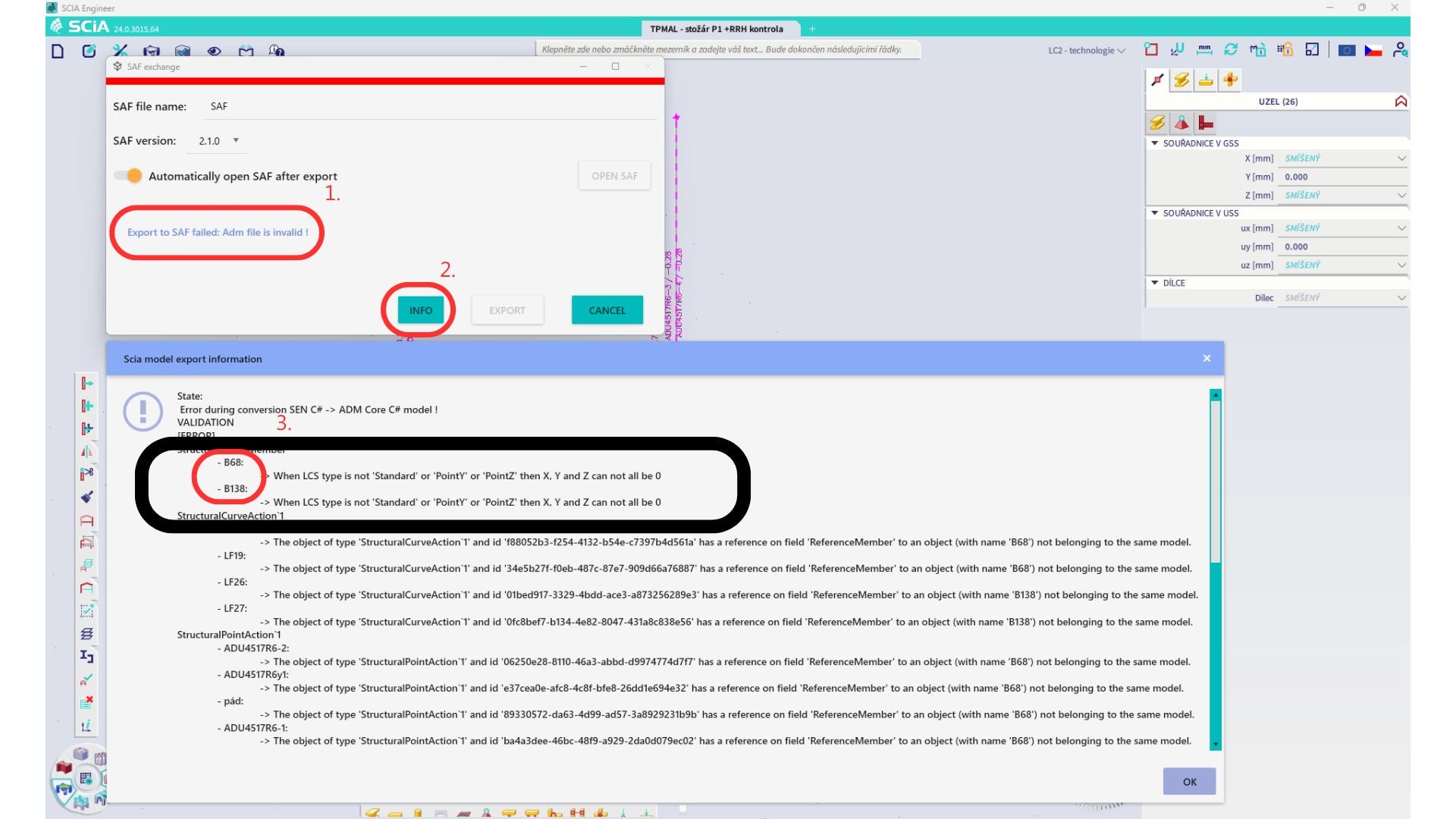
Localize os elementos e altere o seu LCS para "standard". Recalcule e inicie novamente a ligação BIM.
Limitação: As combinações envolventes no Scia Engineer que contêm casos de carga com um "Master load case" definido não são combinadas corretamente após a importação na aplicação IDEA StatiCa Checkbot devido à falta de informação no ficheiro SAF.
Solução alternativa: Antes de exportar, decomponha as combinações envolventes contidas no SCIA Engineer e que contenham casos de carga com um "Master load case" definido em combinações lineares.

Limitação: A Relação Together no grupo de carga não é tida em conta após a importação na aplicação IDEA StatiCa Checkbot e causou forças internas inconsistentes entre o Scia Engineer e o Checkbot.

Solução alternativa: Antes de exportar, decomponha as combinações envolventes em combinações lineares no Scia Engineer. A segunda forma é utilizar a ligação direta para o IDEA StatiCa Connection.