

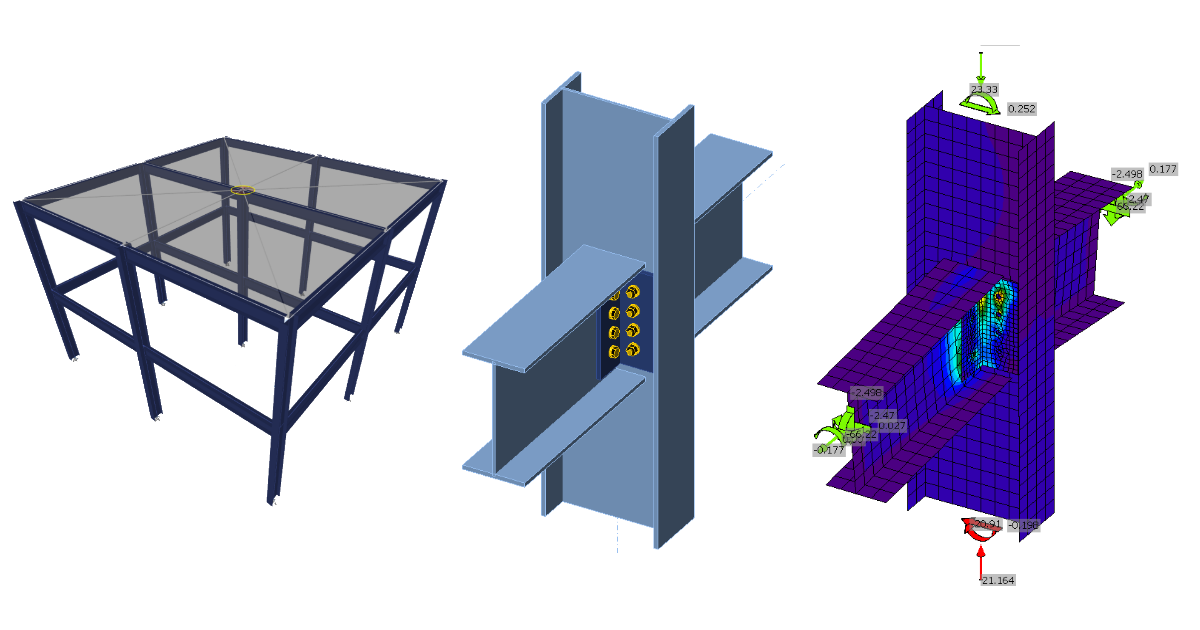
ETABS BIM link for steel connection design (AISC)
1 How to activate the link
- Install the latest version of IDEA StatiCa
- Make sure you are using a supported version of ETABS – updates are published in the BIM section of the main website
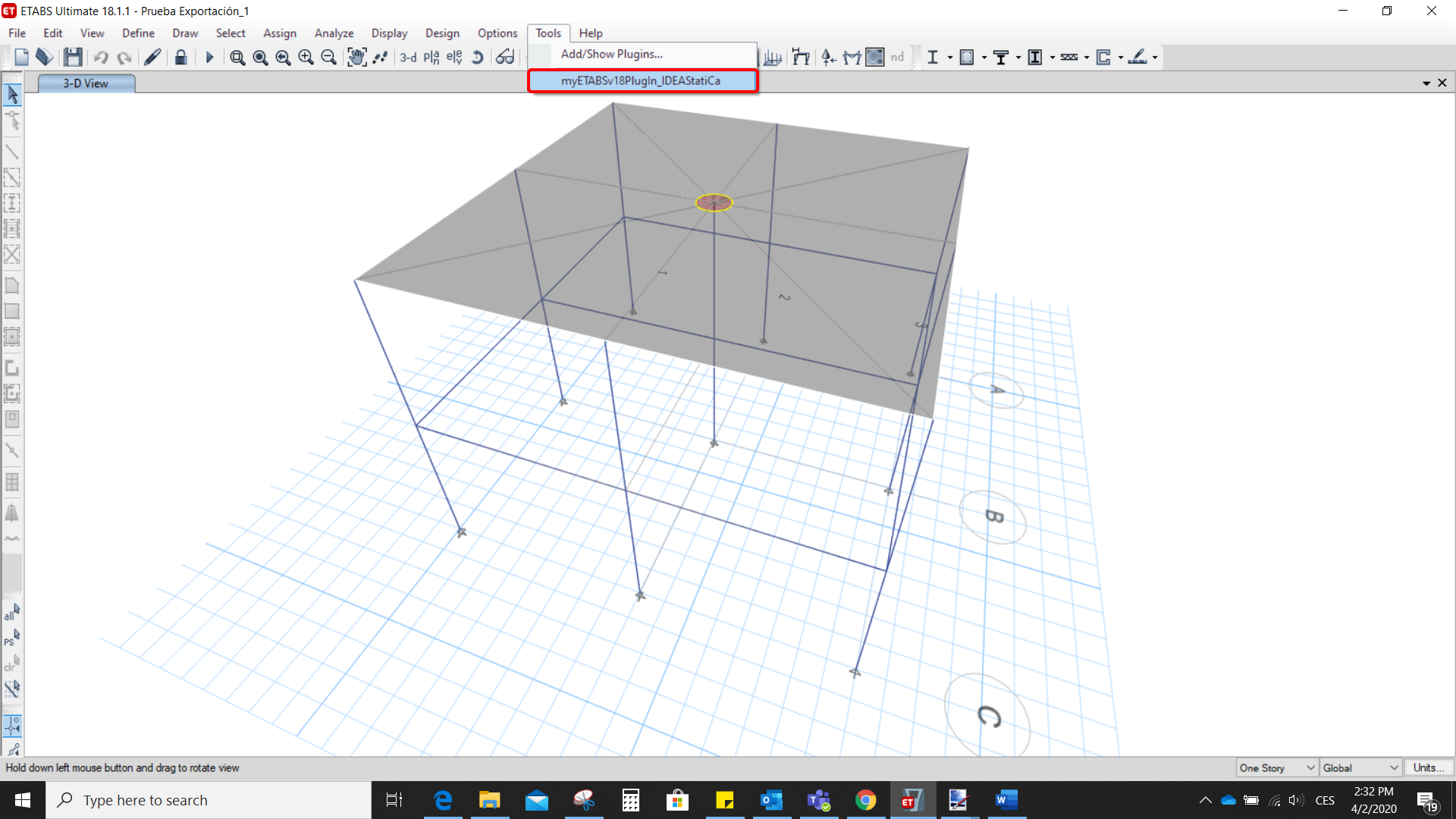
After installation of both programs, start ETABS and Click Tools > Add/Show Plugins to open the Plugin Manager dialog. This option lets you install and add add-ins (programs) to the appropriate places in the ETABS menu.
Browse for
C:\Program Files\IDEA StatiCa\StatiCa 20.0\ETABSv18PlugIn_IDEAStatiCa.dll
and click Add

2 How to use the link
Open the attached project in ETABS and run the analysis.
Go to the menu item Tools and run the export command you have just defined.
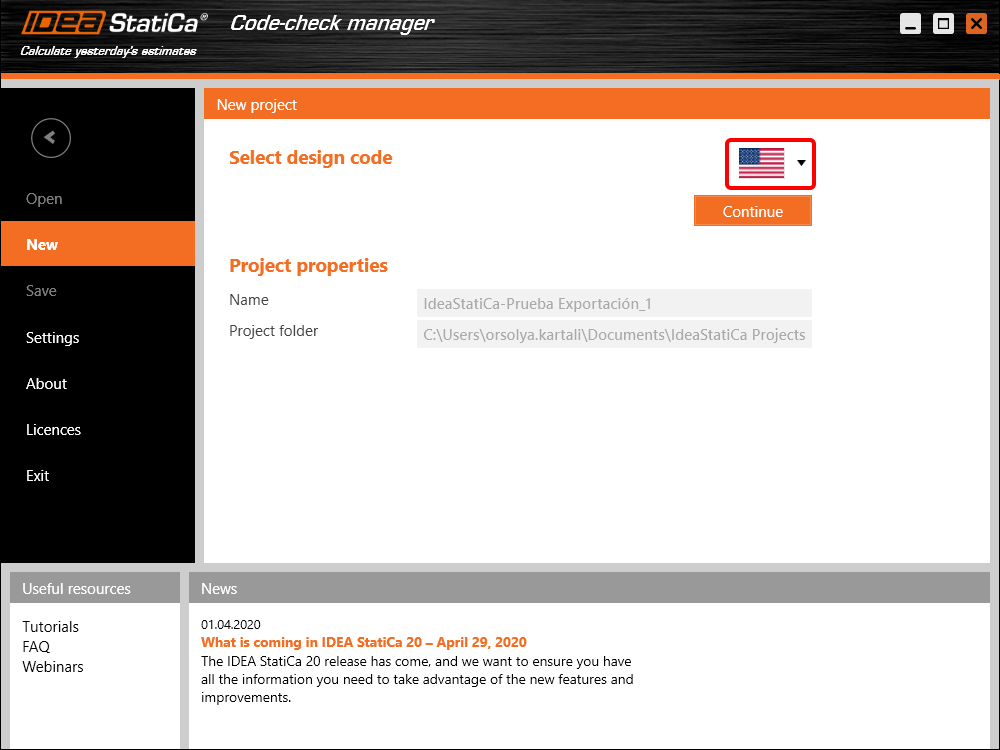
The Code-check manager opens and at first, you need to choose the code.
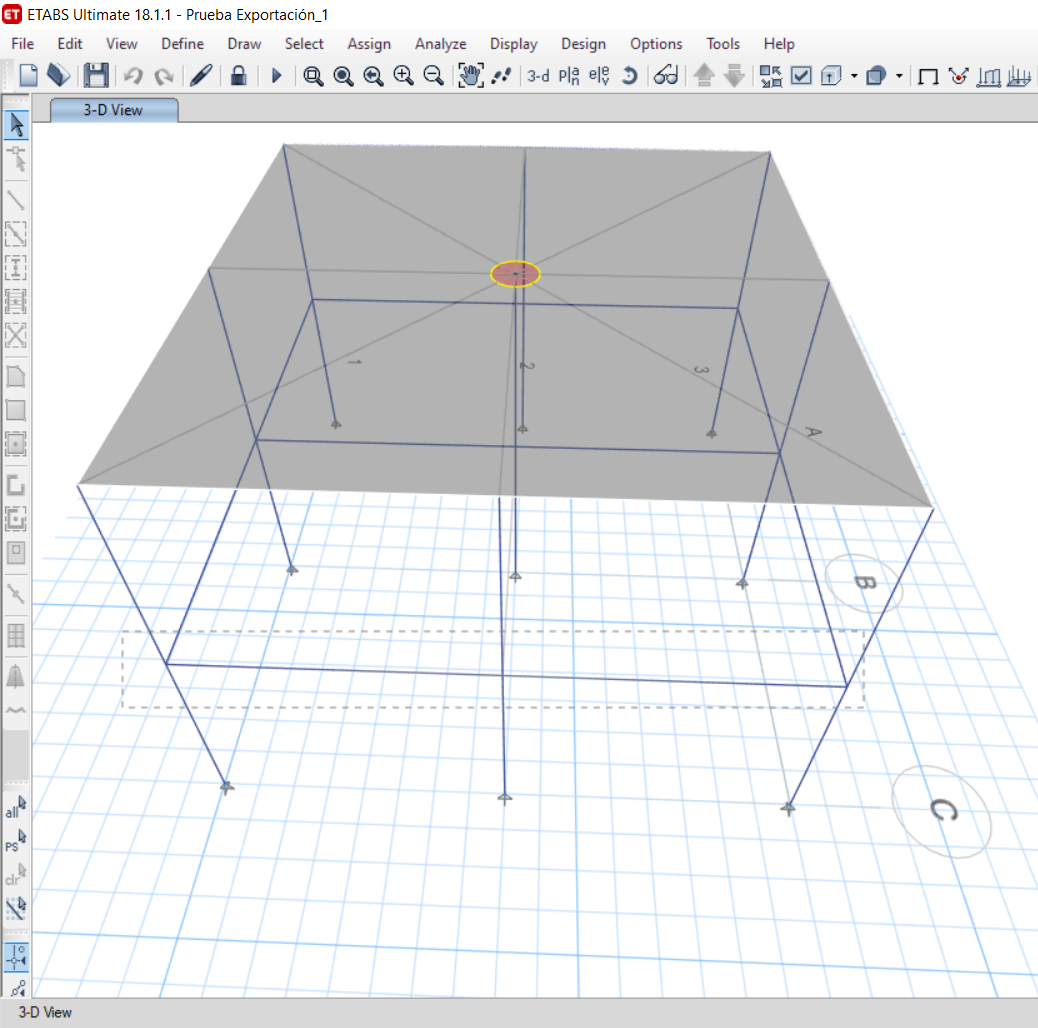
Then you can make a rectangular selection in the ETABS project to choose which joints you want to export. You can export more joints at once using the multiple selections.
If the joints are selected, you can click on the Connection button in the Code-check manager. With this, all the selected joints from ETABS will be imported into the Code-check manager.
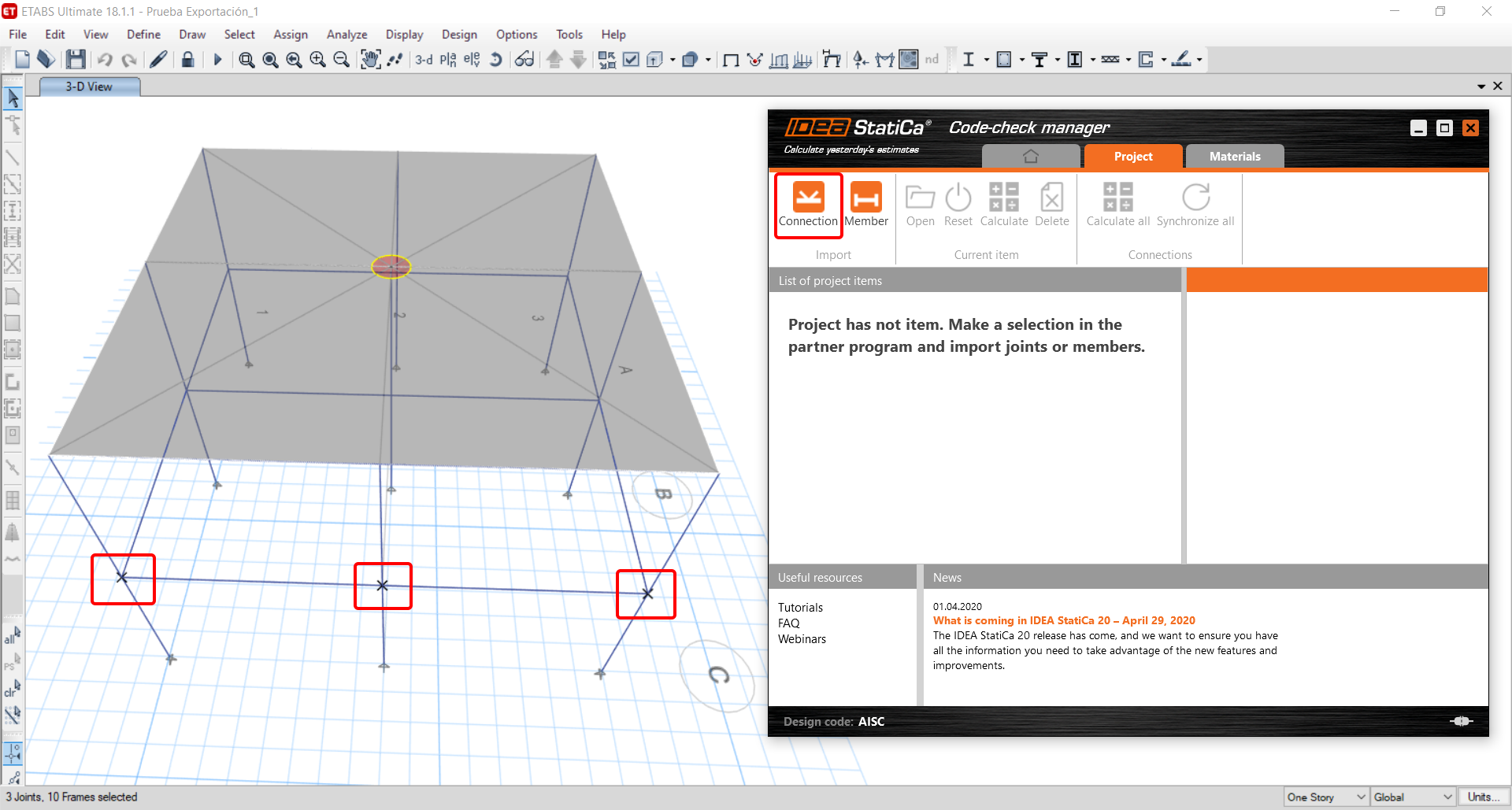
The next thing you need to do is to configure the joints in the Code-check manager. In this tutorial, you will only focus on one of the three imported joints, but the process would be the same for all of them.
You click on the joint on the left side (joint 20). On the right side, you can see the scheme of the joint, you can set the bearing member and merge the continuous members. After that, click on the Finish button to complete the configuration of the joint.
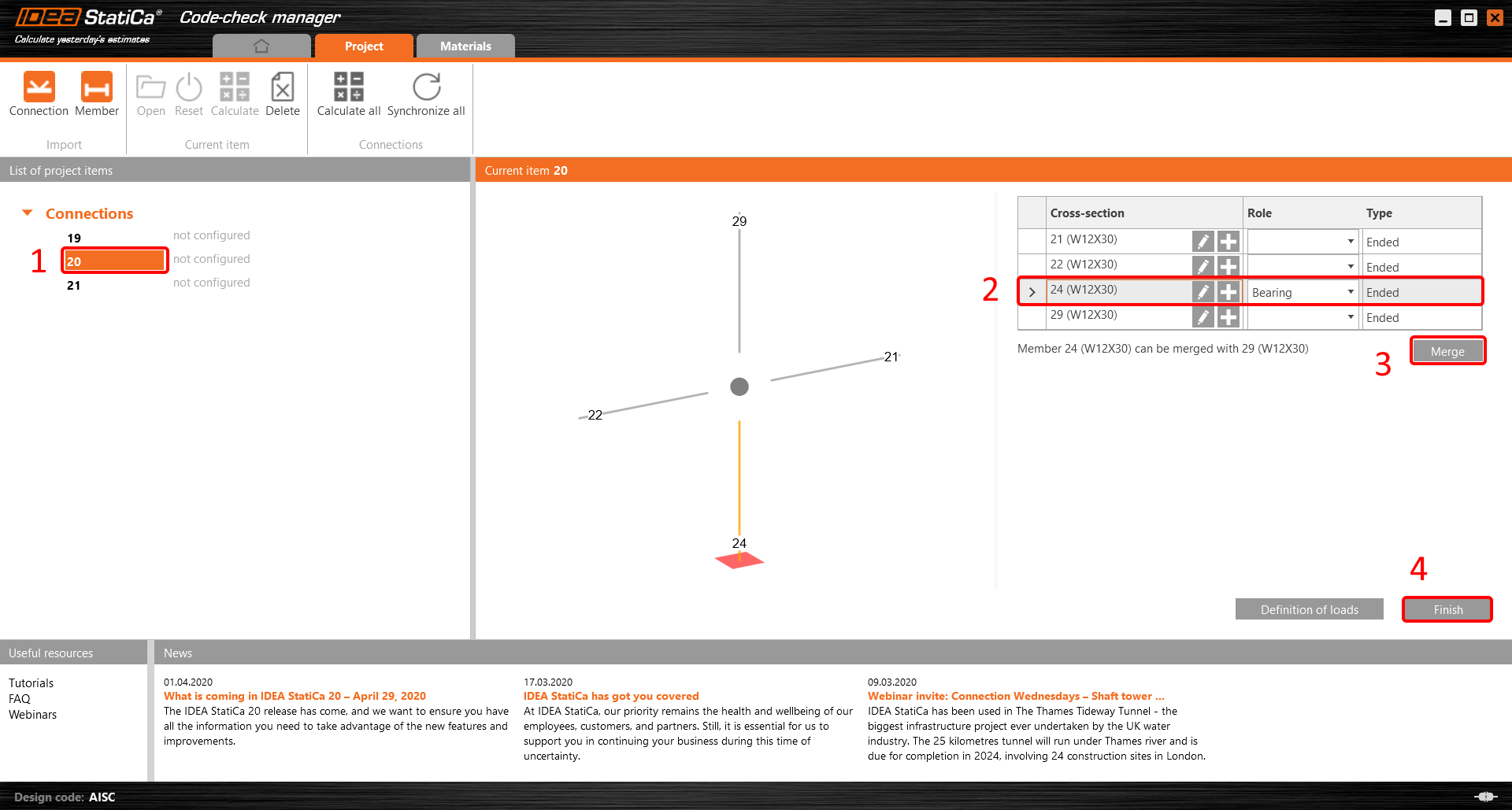
The joint is now ready to be opened in IDEA StatiCa Connection for the CBFEM analysis.

3 Design
Automatic data transfer is started and IDEA StatiCa Connection with a generated project is launched. All members and load effects were added automatically.
This tutorial works with imperial units. If you use metric units, you can switch them to imperial by clicking on the unit in the bottom part of the window.

Now you will define a set of manufacturing operations to model the connection between members. In the items tree, you right-click on Operations and select the option New operation.
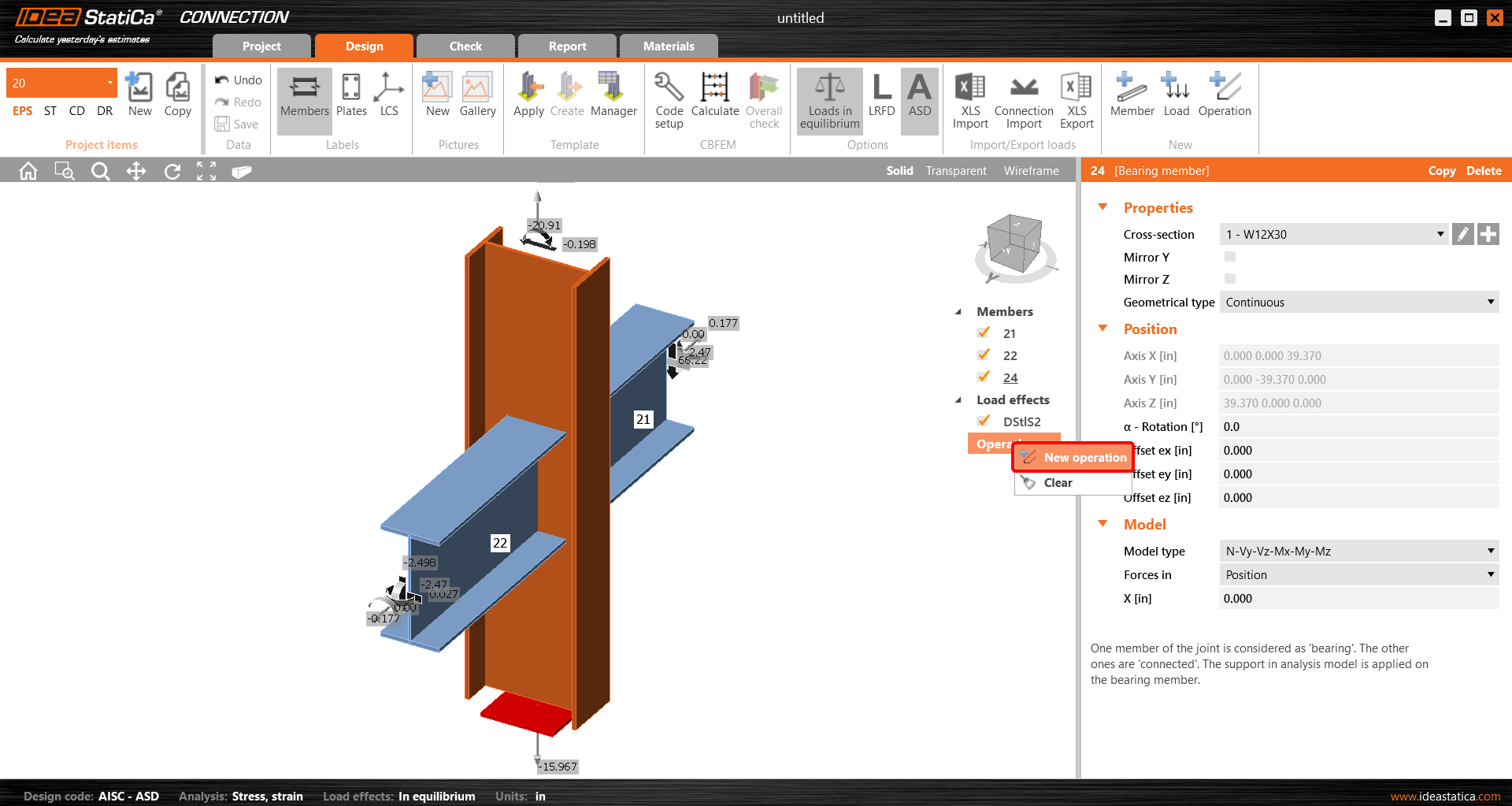
And you add the operation Cleat.


And set the properties of CLEAT1 as follows:

You can check the design of this simple joint.

4 Check
The analysis based on CBFEM is started by the icon Calculate from the top ribbon. The analysis model is automatically generated, the calculation is performed, and you can check the results.
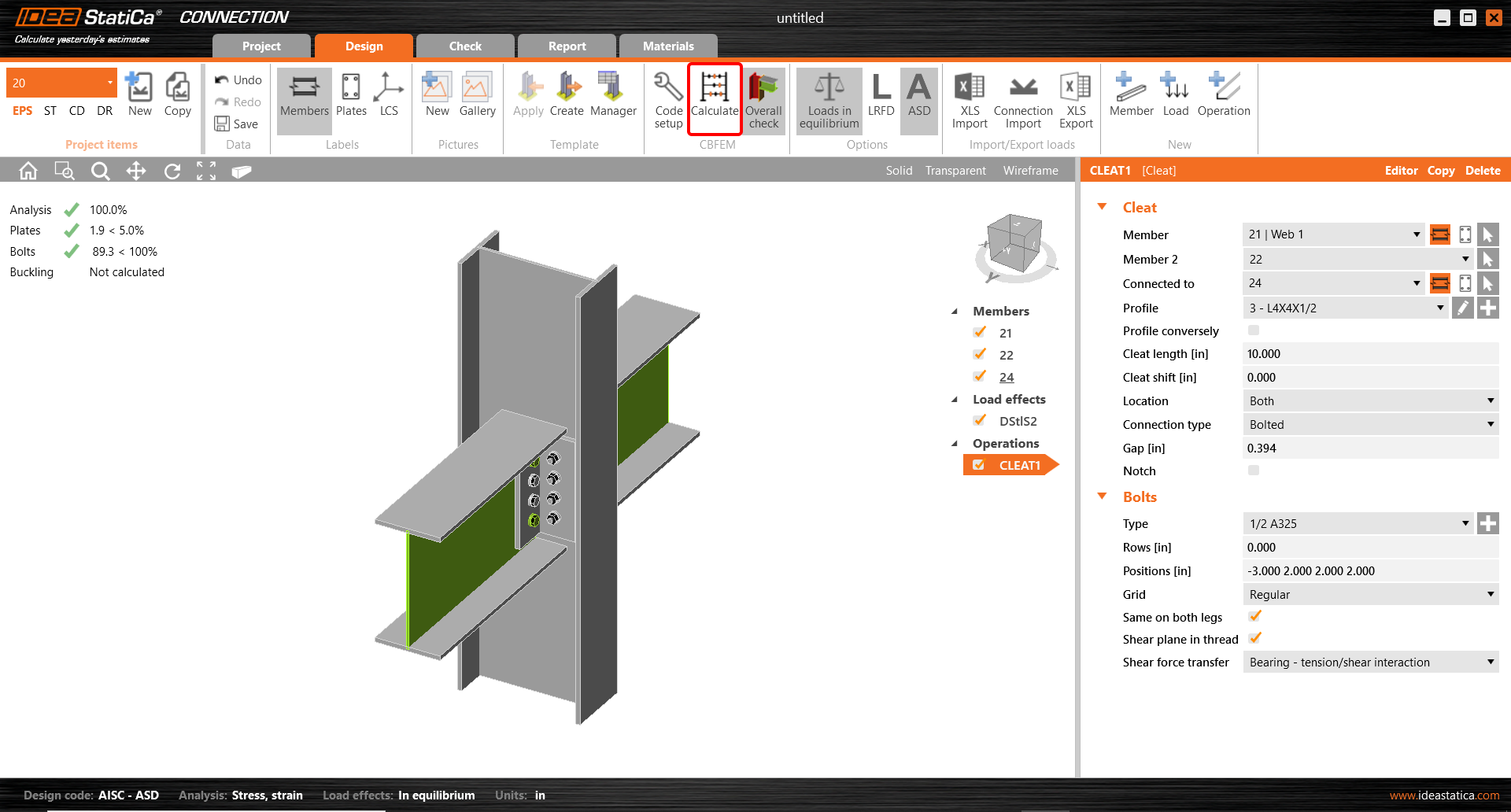
Activate Overall check, Equivalent stress, Mesh and Deformed from the ribbon to get a full picture of what is happening in the joint. Everything is displayed in the 3D window.

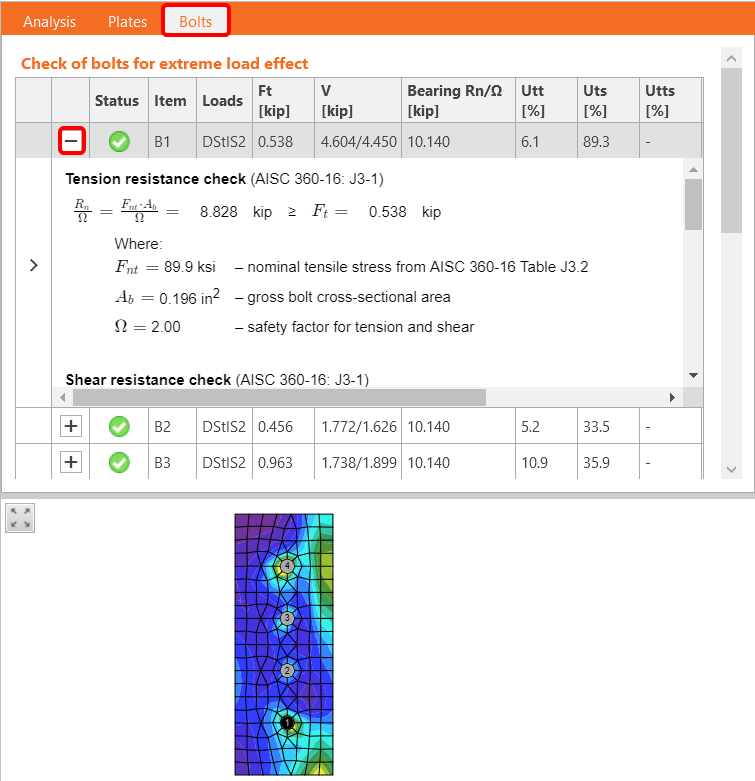
All values can be reviewed in detail in the tables and 2D windows. For example, to display the check of bolts, select the Bolts tab.
5 Report
At last, go to the tab Report. IDEA StatiCa offers a fully customizable report to print out or save in an editable format.

You have imported, designed, and code-checked a steel joint according to AISC.
6 Synchronize models
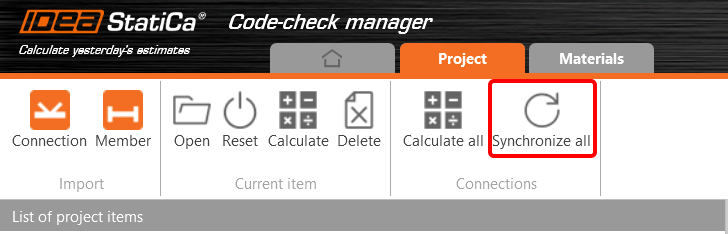
The Code-check manager is a BIM tool to export and synchronize connections from other programs. It is launched directly in the 3rd party applications via a command/icon.
Synchronize all - IDEA StatiCa detects changes in all already imported entities (changes in thickness, changes in cross-section, modification of properties of welds, bolts, etc.) and updates the project in IDEA StatiCa Connection.
Calculate - Synchronize and calculate the current item and provide a new set of results.
Calculate all - Synchronize and calculate all items and provide a new set of results.
Note
Kindly be aware that IDEA StatiCa syncs with a model of the 3rd party application, not the other way around.
Save the project in IDEA StatiCa and close the application Connection. All joints exported from the ETABS project to IDEA StatiCa are kept on the list inside ETABS.
Unlock the model and change the cross-section of member 22 from W12x30 to W12x26.

Run the analysis, select the export command in the upper ribbon, and in the Code-check manager, click on Synchronize.
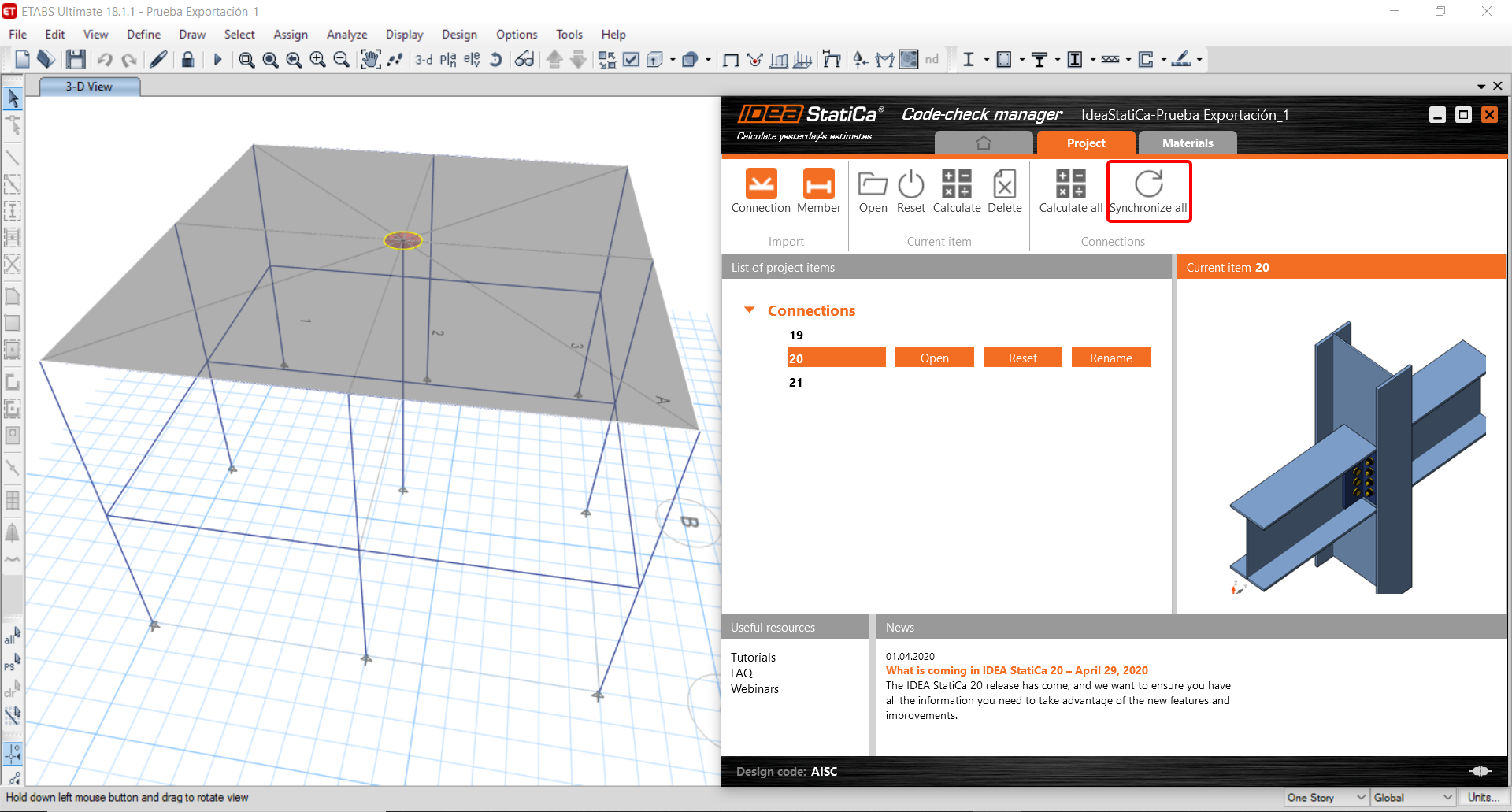
In the next step, you can Open the joint in IDEA StatiCa Connection to explore the changes.
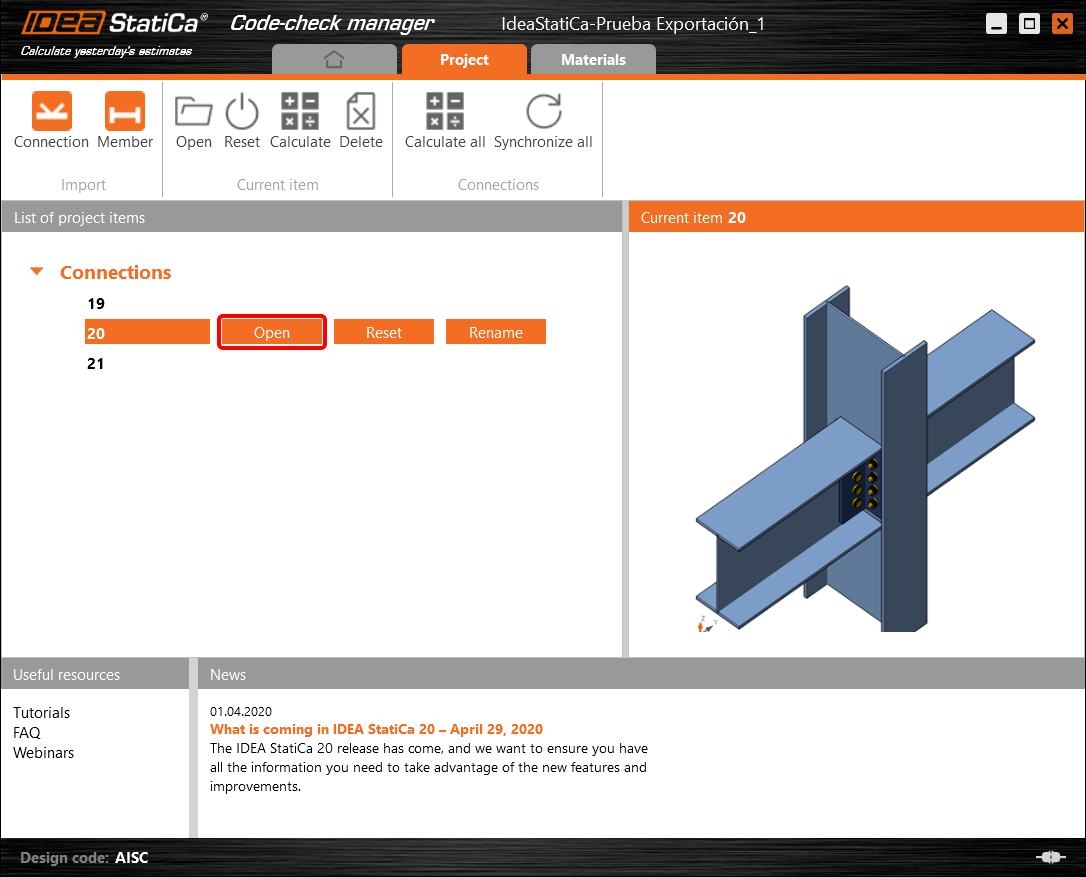
As you can see, the cross-section of the Member 22 has been changed, but all previous operations remained.

You have imported, designed, and code-checked a steel joint according to AISC.
Limitaciones conocidas para ETABS y SAP2000
Limitaciones del enlace BIM de hormigón
A continuación se describen las limitaciones y consideraciones actuales al utilizar el enlace BIM de ETABS/SAP2000 con IDEA StatiCa Checkbot y Detail 2D, destacando posibles restricciones, problemas comunes y prácticas recomendadas para garantizar un análisis y diseño precisos.
Limitación: Importación
Si un caso de carga de ETABS contiene pasos de análisis, IDEA StatiCa Checkbot no podrá considerarlos todos.
- Se recomienda separar los casos de carga escalonados en casos de carga individuales antes de la importación.
Limitación: Funcionalidad de sincronización
Al sincronizar el modelo, los tipos de combinación de carga se restablecen.
- El usuario debe reasignar los tipos de combinación de carga correctos después de cada sincronización.
Limitación: Creación de elementos Detail
Las siguientes limitaciones se aplican al crear un Detail en Checkbot:
- Los Details solo pueden crearse para elementos de muro que se encuentren en el mismo plano.
- Si los elementos seleccionados no son coplanares, se producirá un error y deberá seleccionarse un conjunto diferente de elementos.
Limitación: Exportación de Detail
Al exportar un Detail, se aplican las siguientes limitaciones (se mostrará una advertencia en Checkbot cuando sea relevante):
- Las cargas uniformes fuera del plano aplicadas a elementos 2D no se transfieren a Detail 2D.
- Los elementos 2D no se fusionarán si tienen espesores diferentes, materiales o valores de carga en el plano distintos.
- La carga fuera del plano no puede exportarse. Aparecerá una advertencia si la carga total en el borde para un caso de carga supera ±1 kN.
- Los elementos 2D no verticales no deben transferirse a Detail 2D; la aplicación no es adecuada para dichos elementos.
Problemas comunes con el flujo de trabajo
- Las cargas puntuales concentradas pueden causar fallos en el análisis no lineal. Añada un dispositivo de transferencia (p. ej., placa de apoyo) para distribuir la carga.
- Una malla de ETABS o SAP2000 gruesa (típica de los modelos globales) puede causar picos de tensión y producir fuerzas concentradas poco realistas tanto en valor como en posición para el diseño de la armadura.
- Recomendación: Modifique la malla a 100 mm x 100 mm para los elementos de muro importados.
- Una malla gruesa también puede causar momentos en el plano significativos que no pueden capturarse con precisión en IDEA StatiCa.
- Recomendación: Establezca la rigidez fuera del plano de los elementos de muro importados a un valor bajo para que los elementos estructurales circundantes en el modelo global puedan absorber y transferir adecuadamente las fuerzas fuera del plano.
- Si una carga puntual en el borde genera tracción en el borde (p. ej., por carga lateral), el análisis no lineal puede fallar.
- Recomendación: Desplace la carga puntual ligeramente hacia el interior para garantizar un compromiso adecuado del hormigón.

Limitaciones del enlace BIM de acero
El enlace ahora funciona para una amplia variedad de uniones/juntas. Sin embargo, tenga en cuenta la funcionalidad aún no compatible:
Limitación: Importación de cargas
No se admite la importación de combinaciones de carga que contengan combinaciones de carga con adición no lineal.
No se admite la referencia a una combinación de carga dentro de otra combinación de carga.
Limitación: Cómo ejecutar los enlaces de SAP2000 y ETABS con IDEA StatiCa 22.1.
Versiones problemáticas:
- SAP2000 24.1.0
- ETABS 20.3.0
Descripción del problema:
El nuevo parche de SAP2000 24.1.0 no funciona con la última versión de IDEA 22.1. Una vez que inicia Checkbot desde el menú, tiene este aspecto y no se puede hacer/hacer clic en nada.
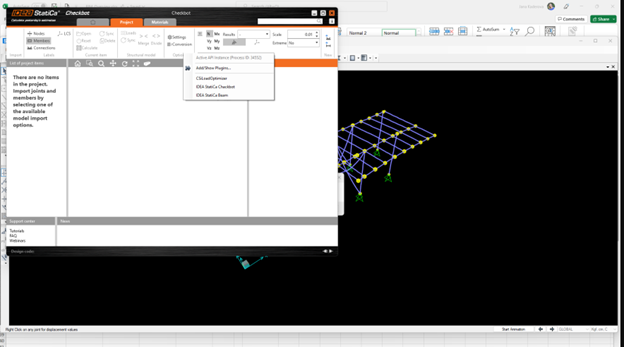
Solución:
Esto aplica también para SAP2000 y ETABS (últimas versiones). La solución alternativa es:
1. Localice el archivo de configuración (SAP2000.exe.config o ETABS.exe.config) en
C:\Program Files\Computers and Structures\SAP2000 24\
o
C:\Program Files\Computers and Structures\ETABS 20\
2. Elimine las siguientes líneas del final del archivo y guárdelo (requiere derechos de administrador).

Alternativamente, copie el archivo al escritorio, edítelo allí y cópielo de vuelta a la carpeta original.
Así es como debería verse el archivo (su parte inferior) después de que el enlace de ensamblado se haya eliminado correctamente:
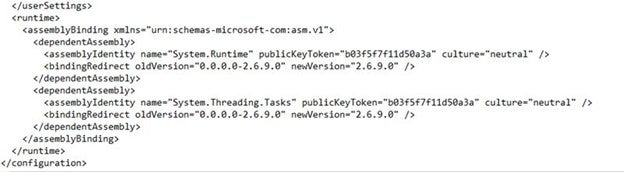
3. A continuación, es posible ejecutar Checkbot.
Limitación: Equilibrio
Para garantizar el equilibrio en los nodos, establezca los desplazamientos de longitud final a 0:


Limitación: Convenio de signos para fuerzas internas
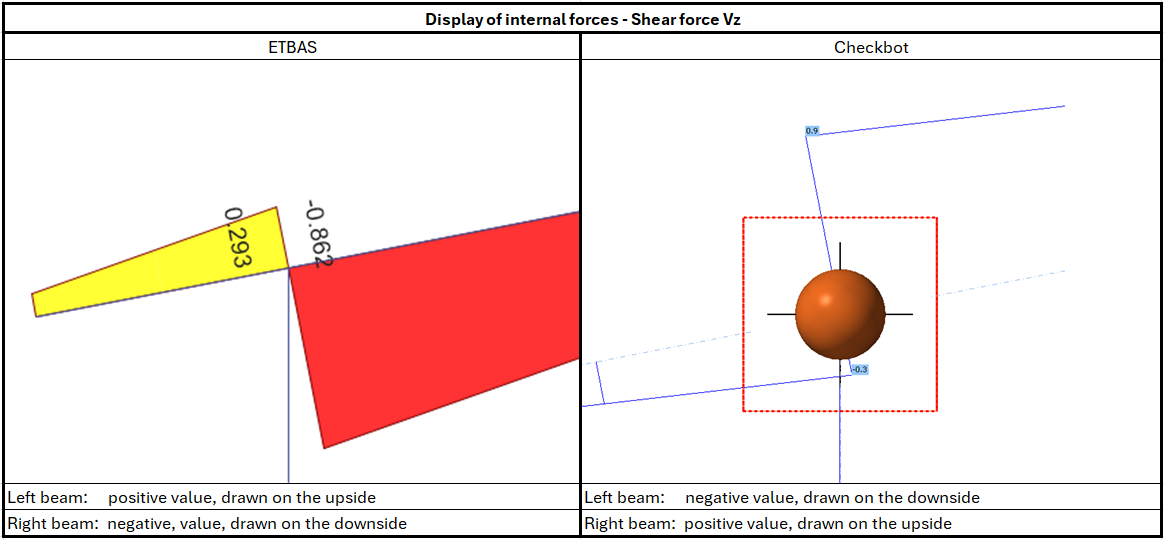
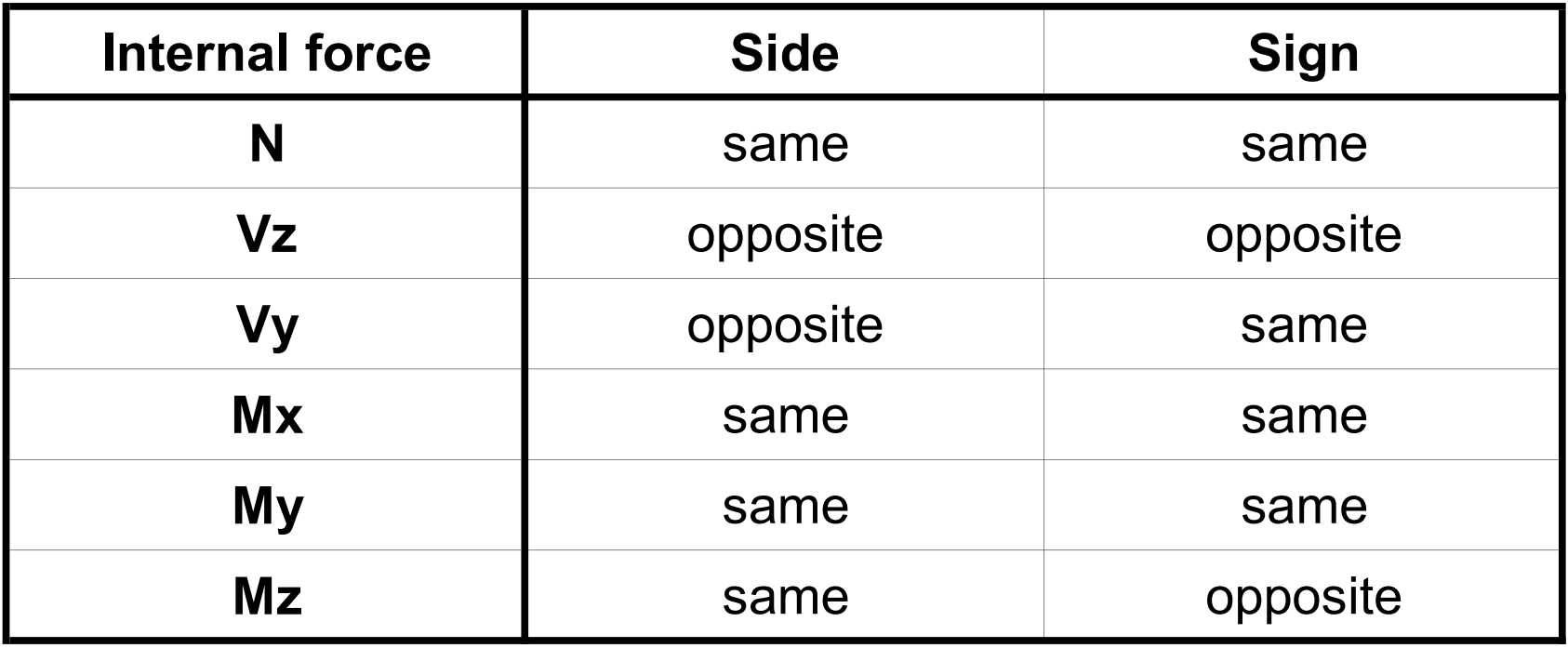
Debido a los diferentes convenios de signos en ETABS y en Checkbot, las fuerzas internas se muestran de forma diferente. Los efectos de carga se aplican correctamente, pero las fuerzas internas pueden mostrarse con el signo opuesto y dibujarse en el otro lado de la viga.
Limitación: Varias versiones de SAP2000 o ETABS instaladas en el equipo
La API de ETABS y SAP2000 utiliza la biblioteca COM, que debe estar registrada en el registro del sistema. Al instalar una nueva versión, durante la instalación el COM de esa versión se registra automáticamente. Por lo tanto, cuando intenta ejecutar el enlace de Checkbot para una versión anterior, no funciona.
Si desea alternar entre esas dos versiones, debe:
1) Ejecutar como administrador "UnregisterSAP2000.exe" o "UnregisterETABS.exe" en la carpeta con la versión más reciente.
2) Luego ejecutar como administrador "RegisterSAP2000.exe" o "RegisterETABS.exe" en la carpeta con la versión anterior.