

1 How to activate the link
- Install the latest version of IDEA StatiCa, get it in the Downloads
- Make sure you are using a supported version of AxisVM – updates are published in the BIM section
After installation of both programs, run IDEA StatiCa and start with the item BIM.
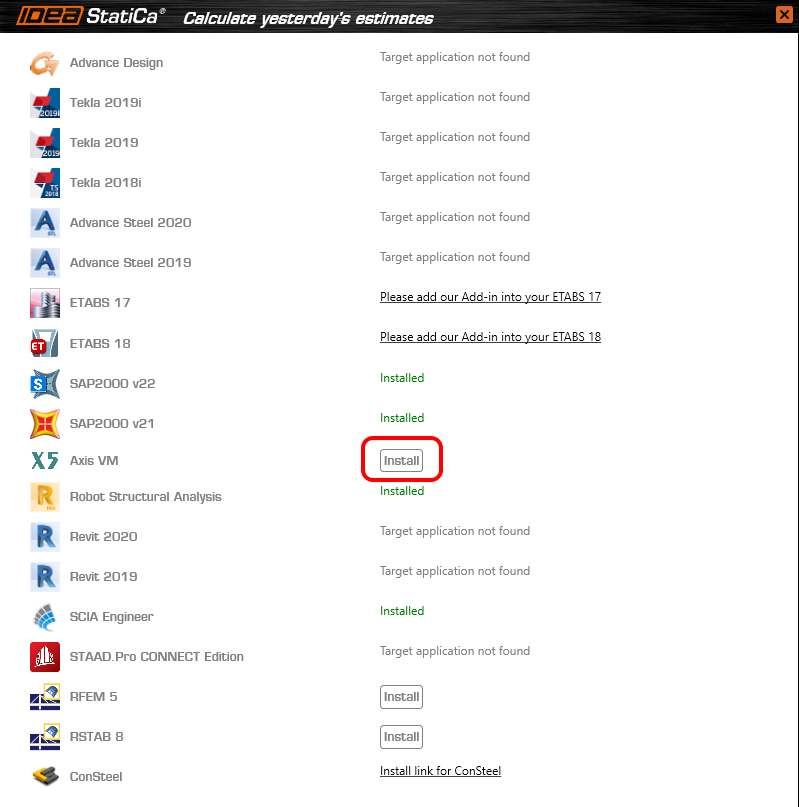
In the BIM wizard, continue with the item Activate your Bim Link... During the process notification "Run as administrator" appears. Please confirm with the button Yes.
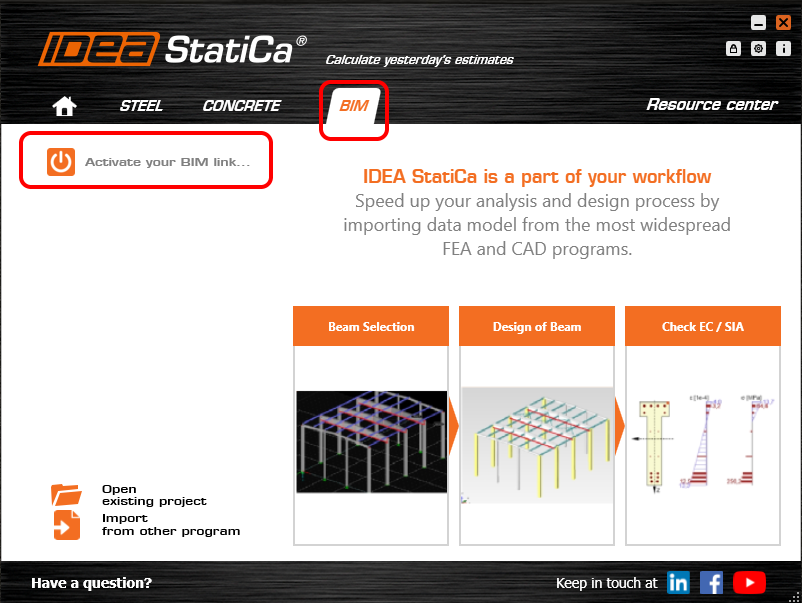
Select your version of AxisVM and click the button Install. The process of integration will start.
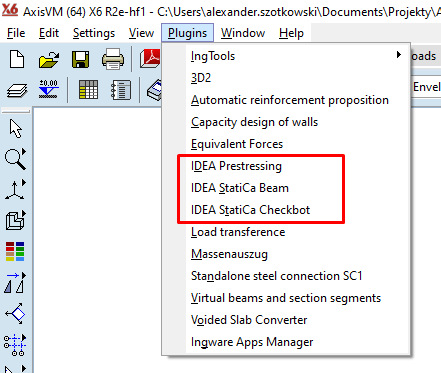
Start AxisVM. In the menu, Plugins are now installed all 3 Plugins of IDEA StatiCa.
2 How to use the link
Open the attached project in AxisVM, run the linear analysis first, and then the nonlinear analysis too.
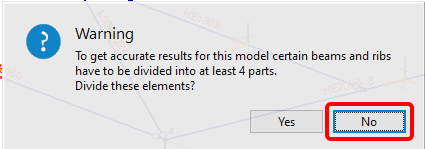
When running the nonlinear analysis, for simplification, do not divide elements according to the next picture.
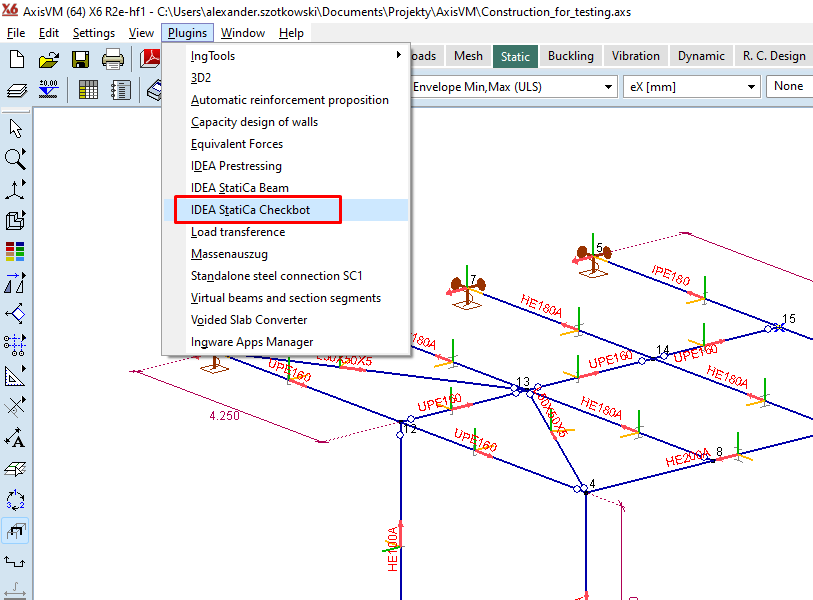
When finished, go to menu item Plugins and choose IDEA StatiCa Checkbot
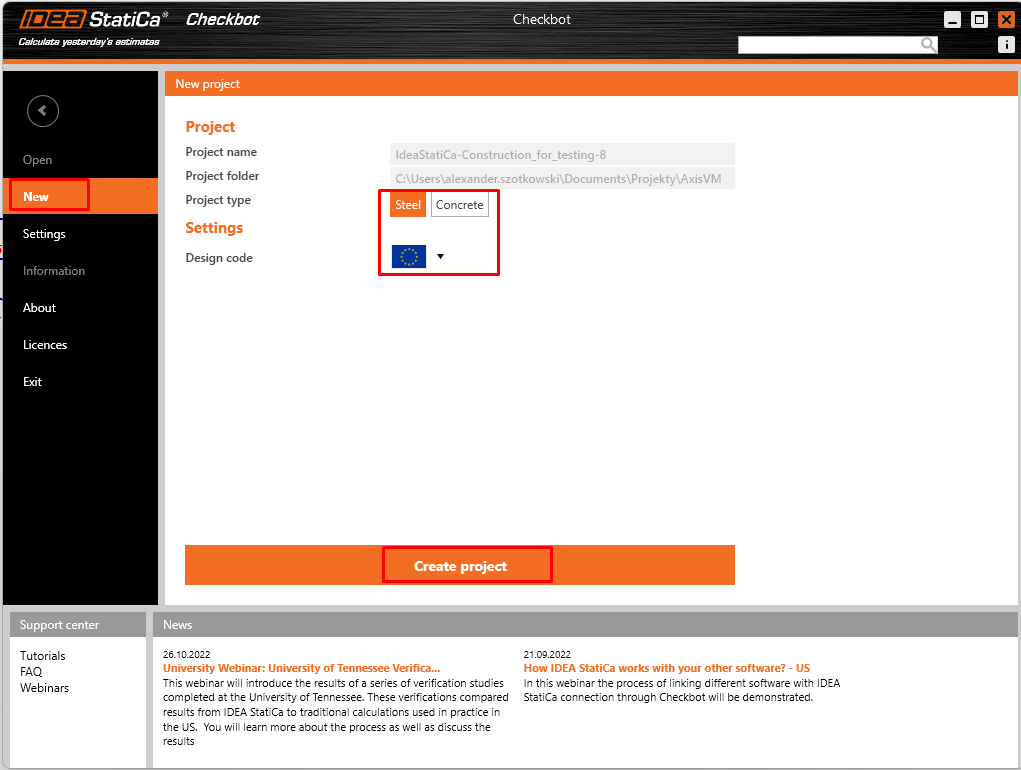
A wizard window opens, click on New and create new project.
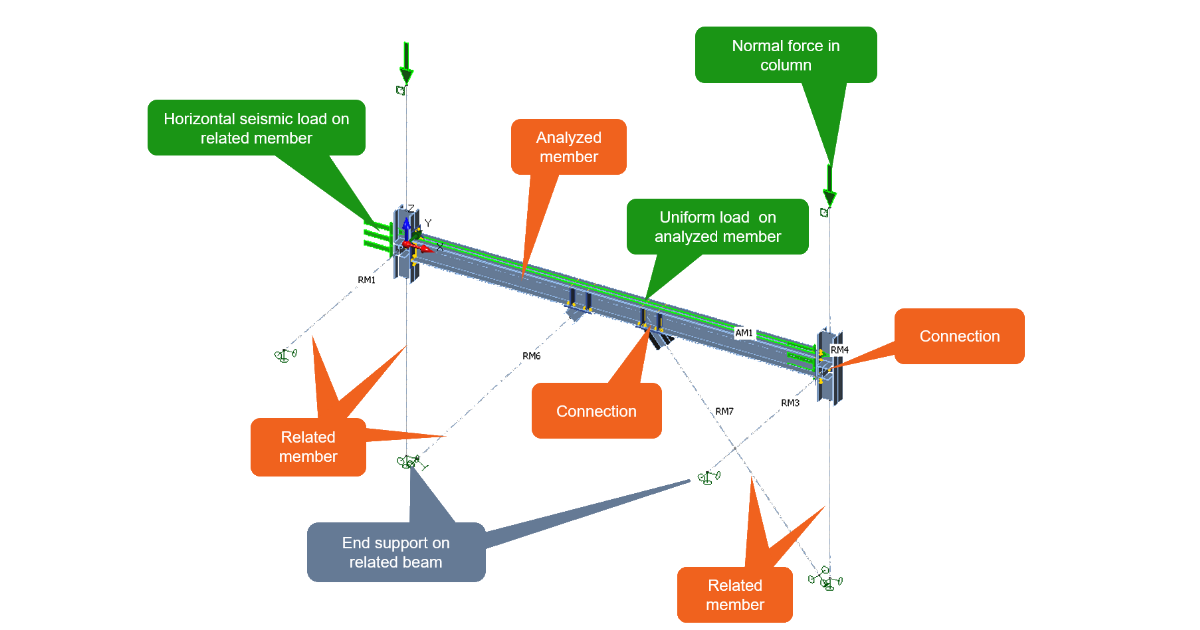
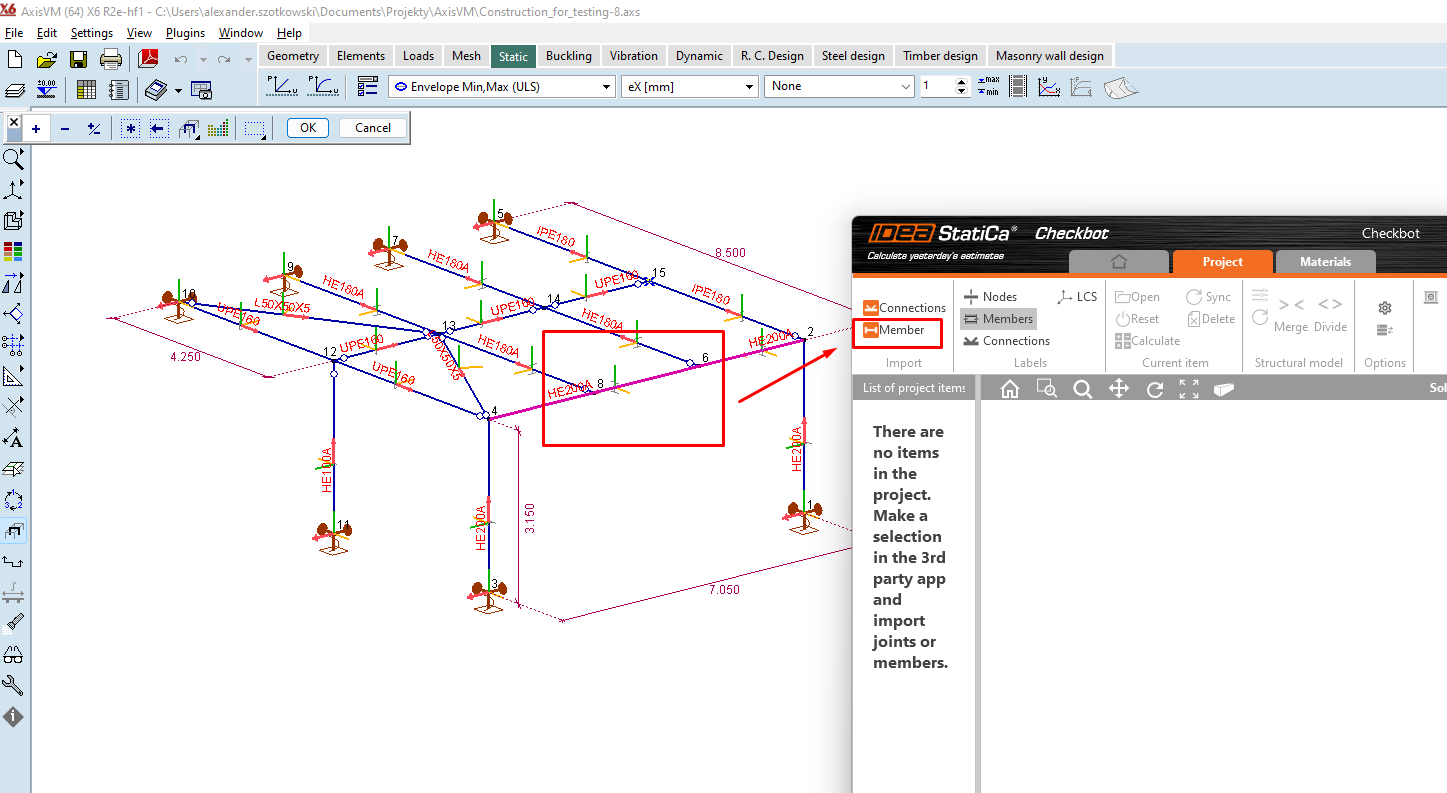
In AxisVM, please select the member you want to transfer to IDEA StatiCa Connection, and click on Member.
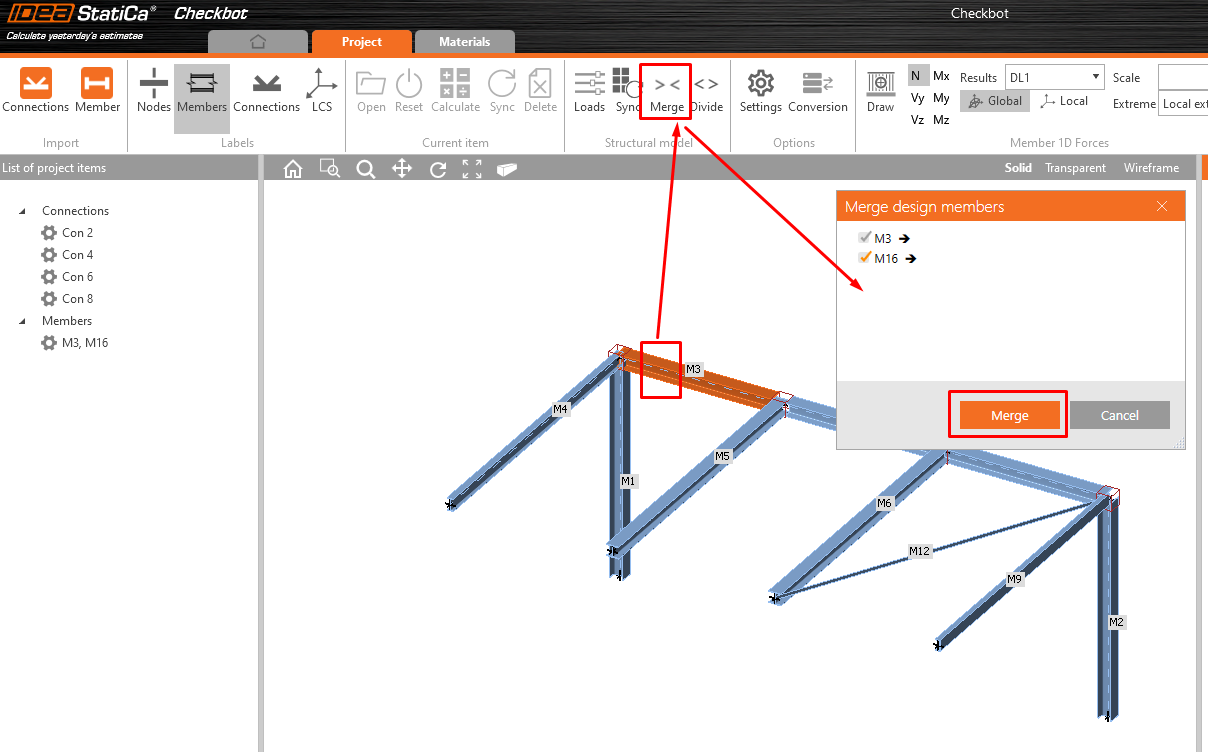
Because the whole member is created from two separate beams, merge the beams M3 and M16.
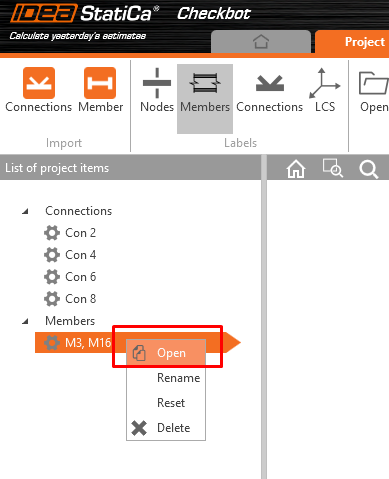
Now you can click on Open, a new window with the module Member appears.
3 Design
To get the analysis of the member, we first have to design all the joints along with the member. You can start with Node 2 when clicking on Edit connection.
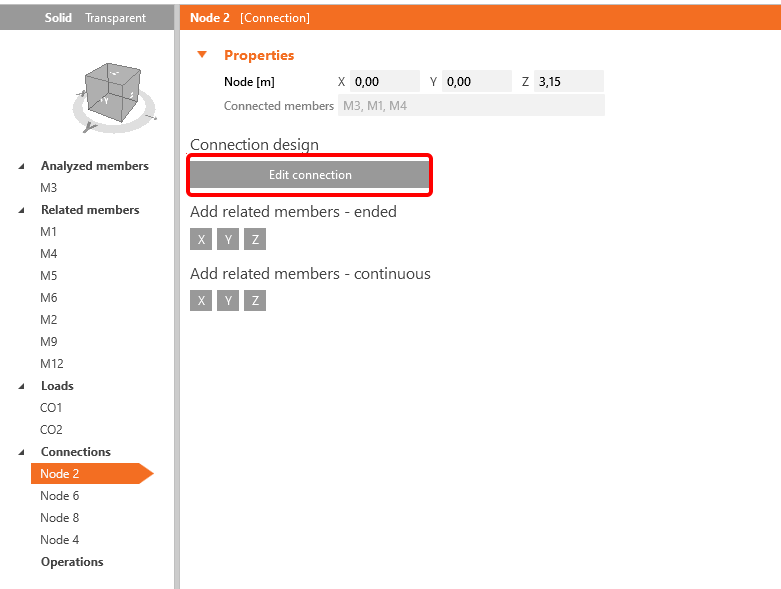
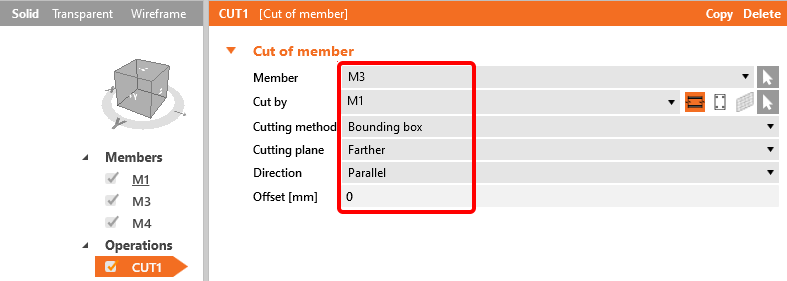
The window with the joint appears, and you can add the first Operation Cut.
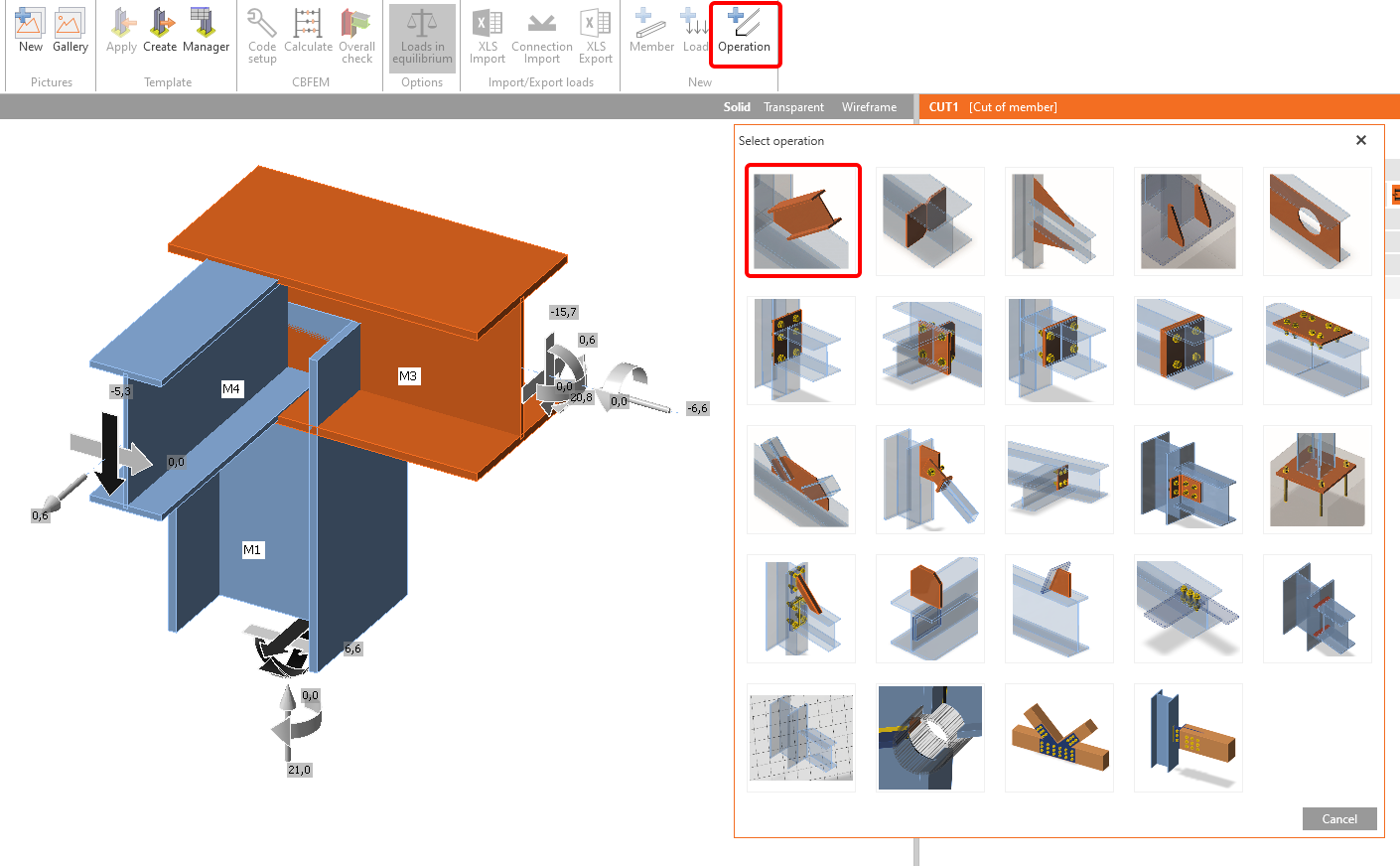
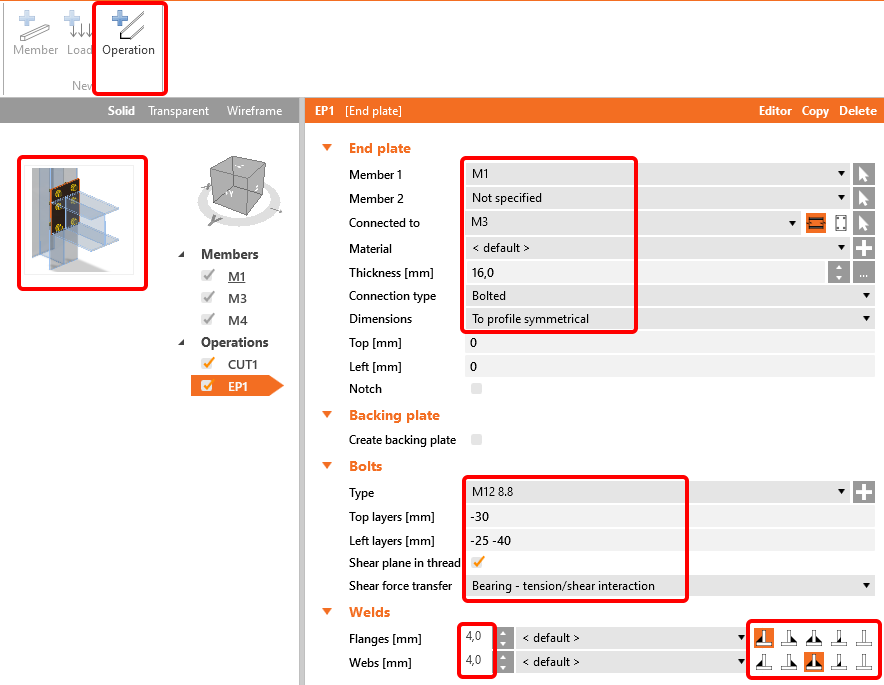
The next operation is the End plate. Fill in the data according to the next picture.
The member M4 you can connect using the operation Fin plate.
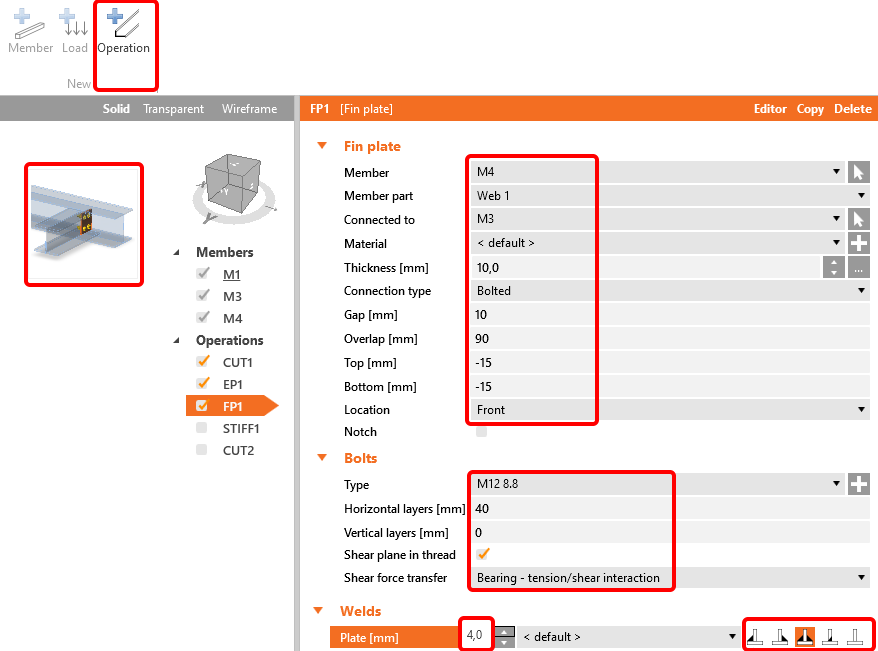
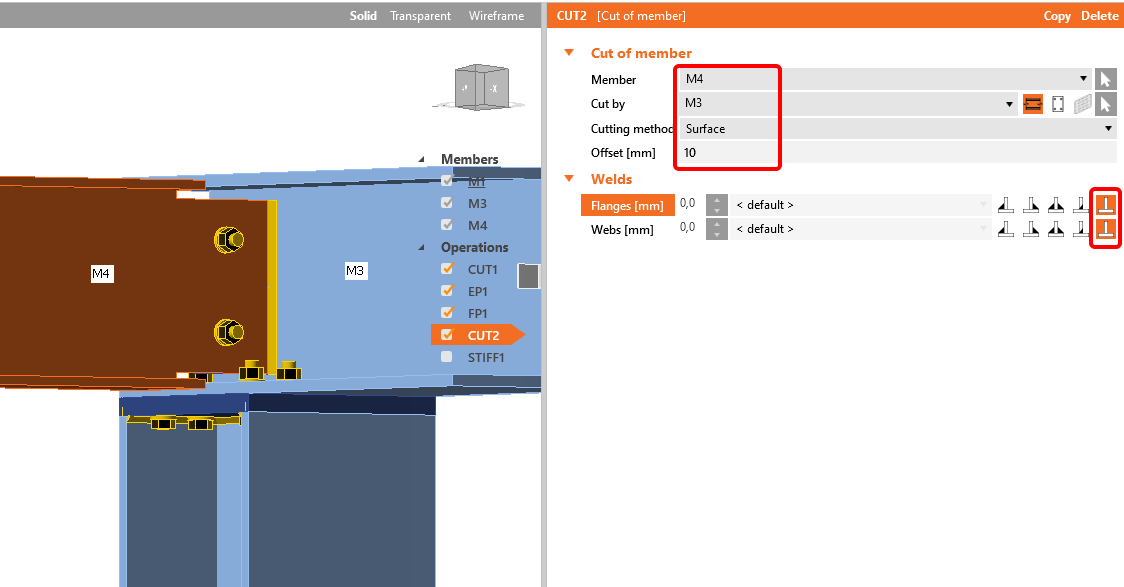
To get the correct shape of the beam M4, use the operation Cut - see picture.
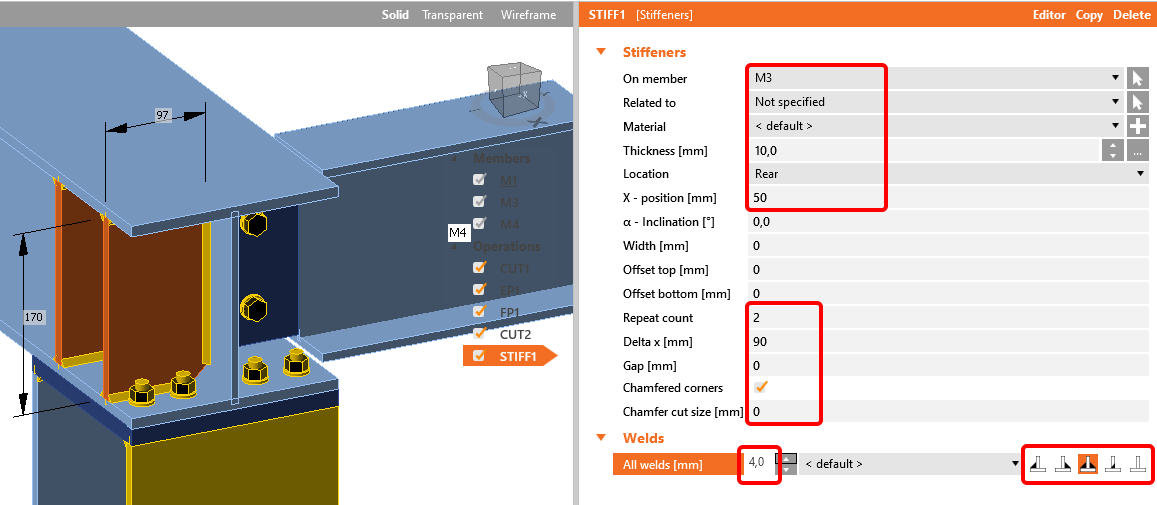
The last operation on this joint is to add the operation Stiffeners.
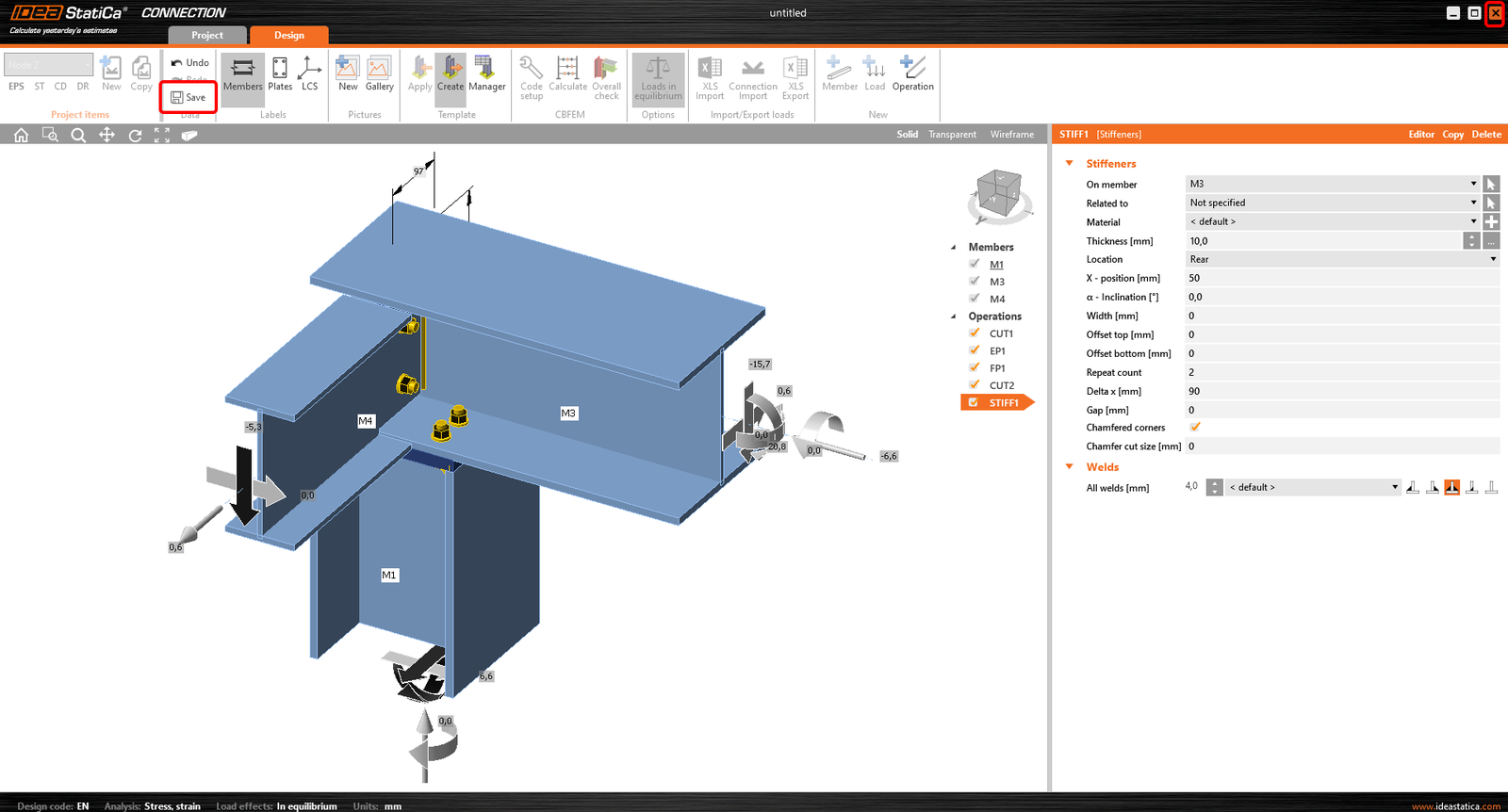
Now we click on Save and close the window.
The same has to be done with Node 6. Click on Edit connection.
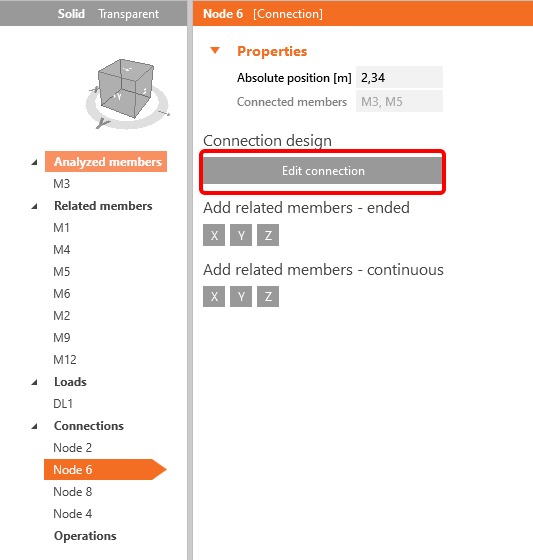
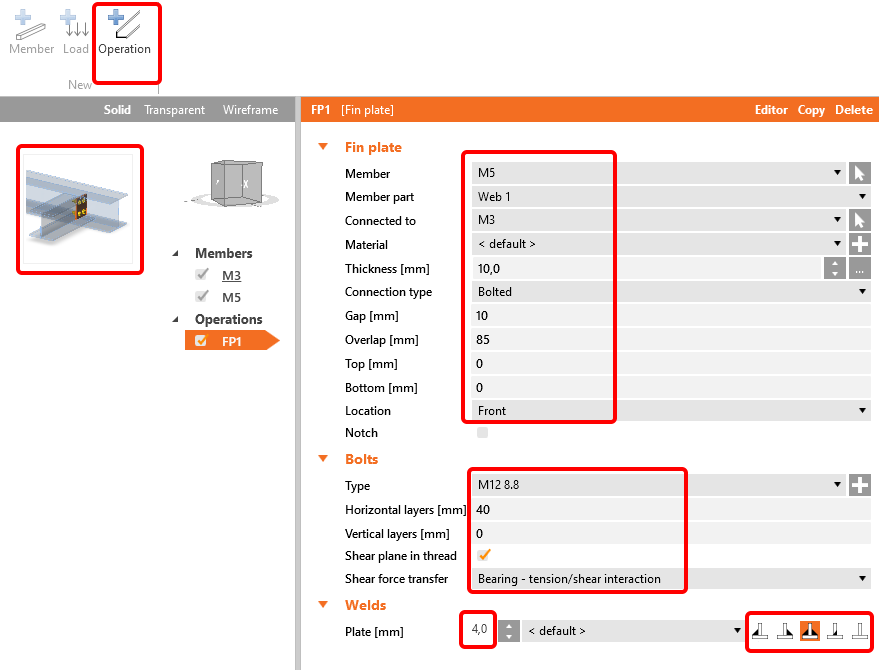
Apply the operation Fin plate with the following settings:
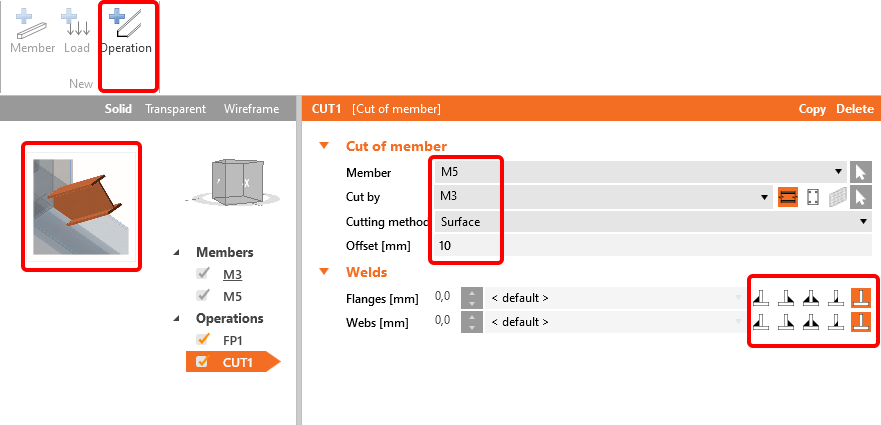
The next operation will be Cut of member M5.
Now click Save and close the window.
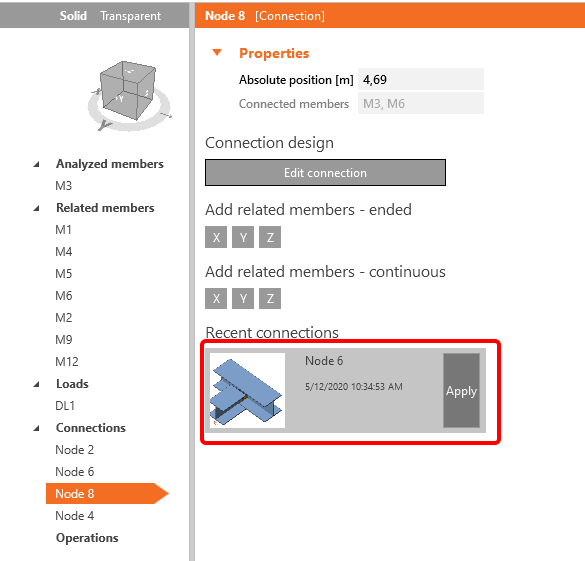
For node 8, you can use the same design as for node 6. Just click on Apply.
Here is the design of the last node 4.
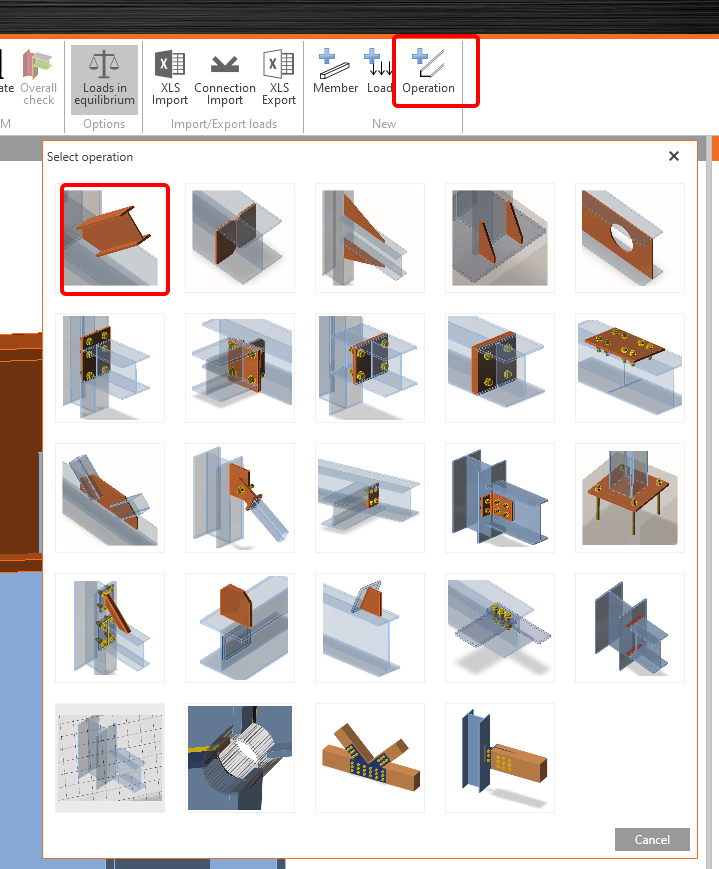
In the upper ribbon, click on +Operation in the upper ribbon and add a New operation Cut.
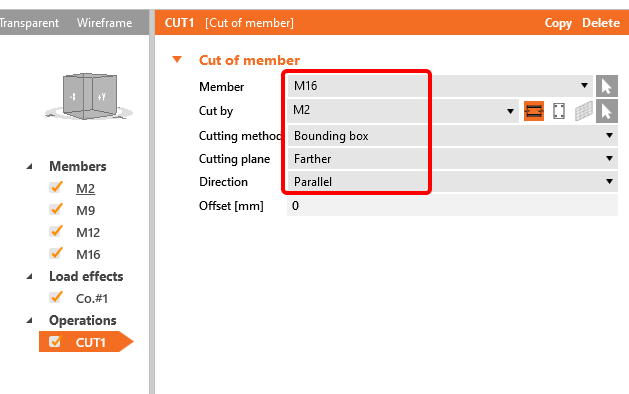
Please modify the table according to the next picture.
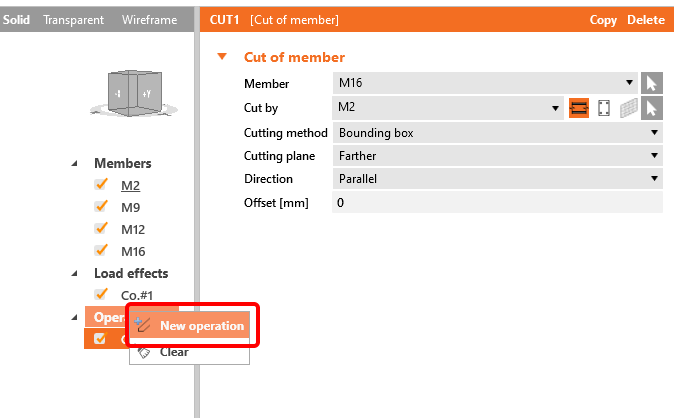
You can now add another operation by right-clicking on Operation to add a New operation End Plate. Change the dimensions and welds according to the next picture.
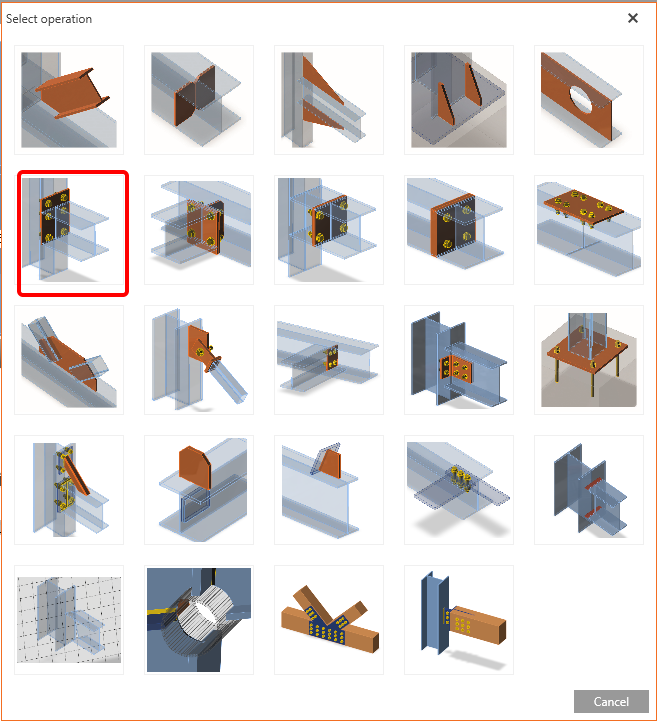
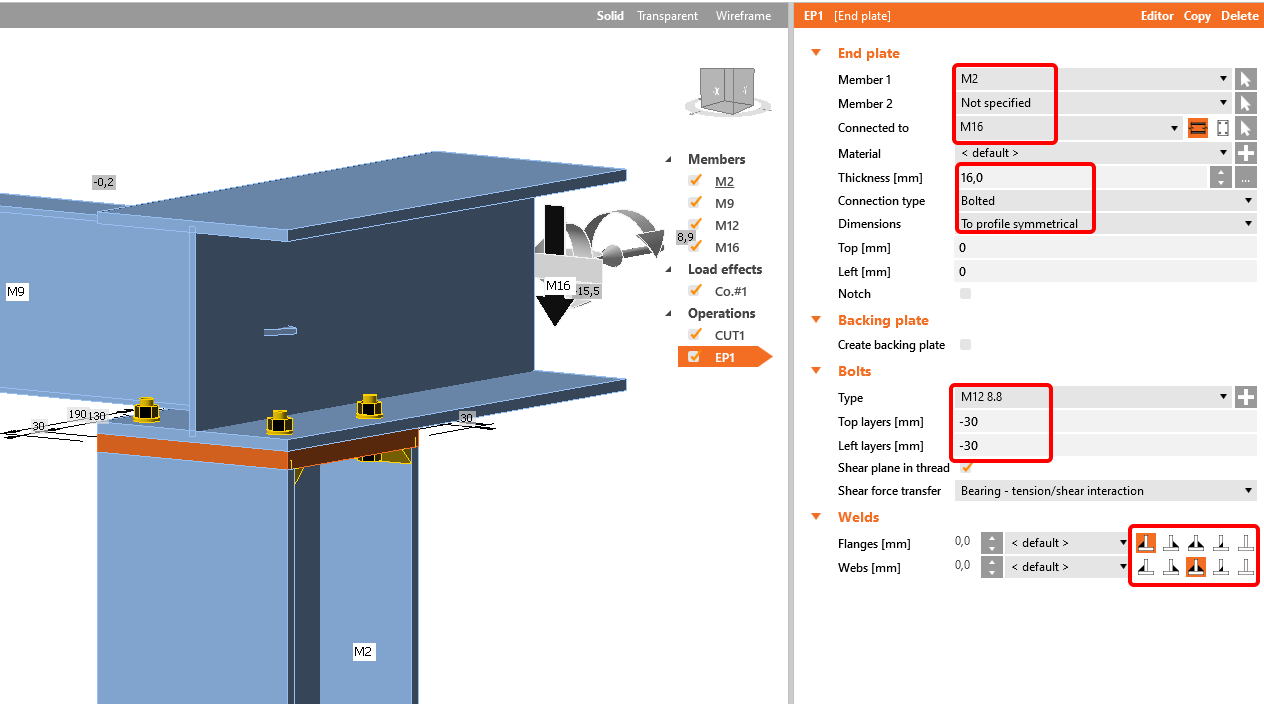
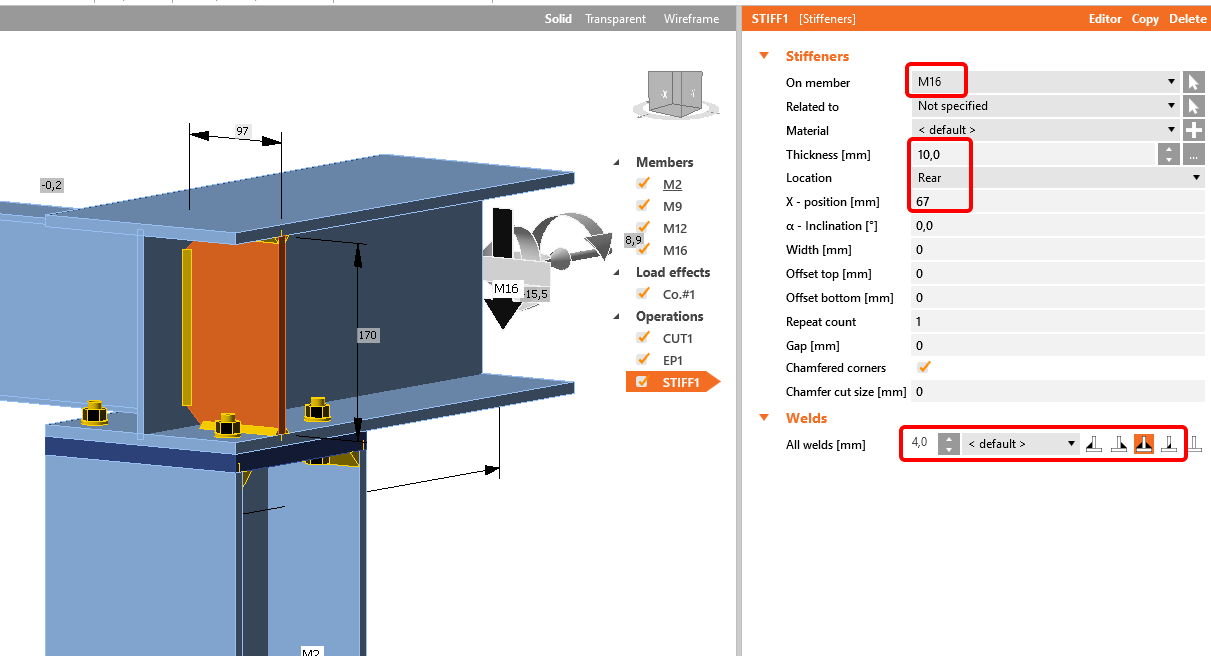
The next Operation will be Stiffener. You can change the dimensions according to the next picture.
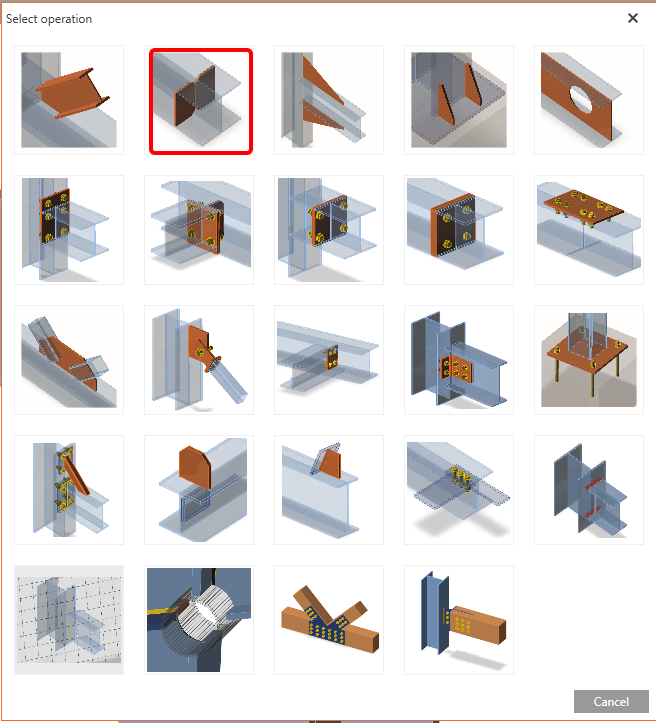
Now you have to connect the member M9 by the operation Fin plate.
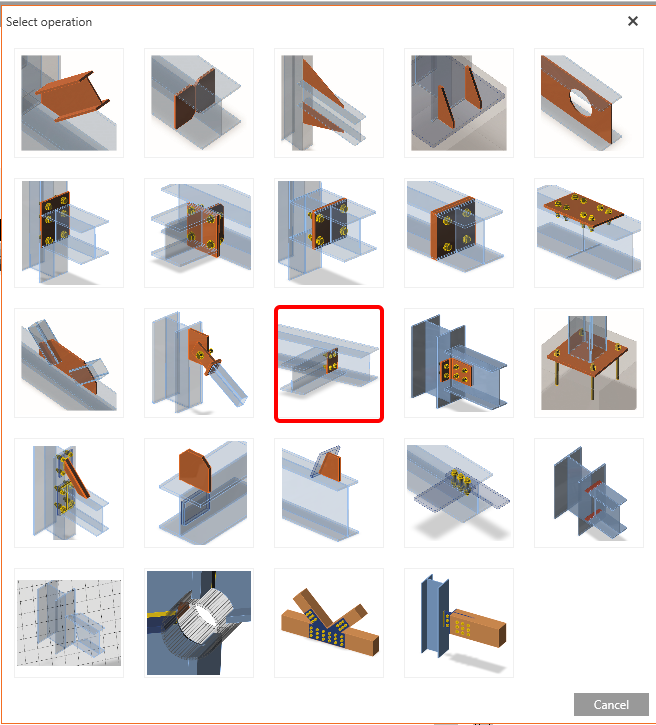
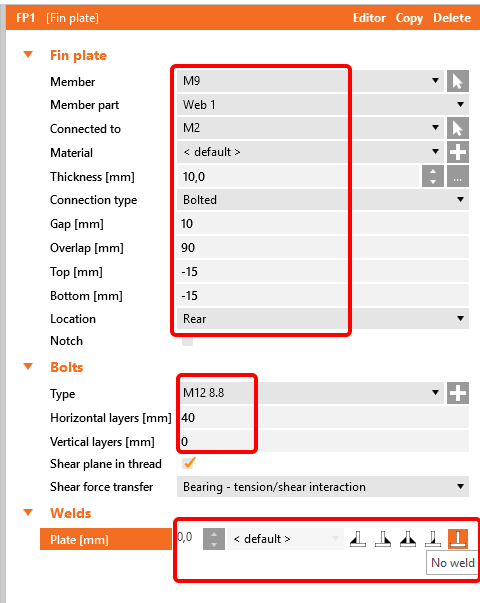
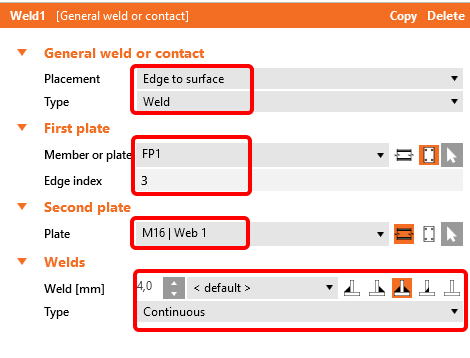
This plate has to be welded to the web of the member M16. So choose the operation Weld and set the values according to the next picture.
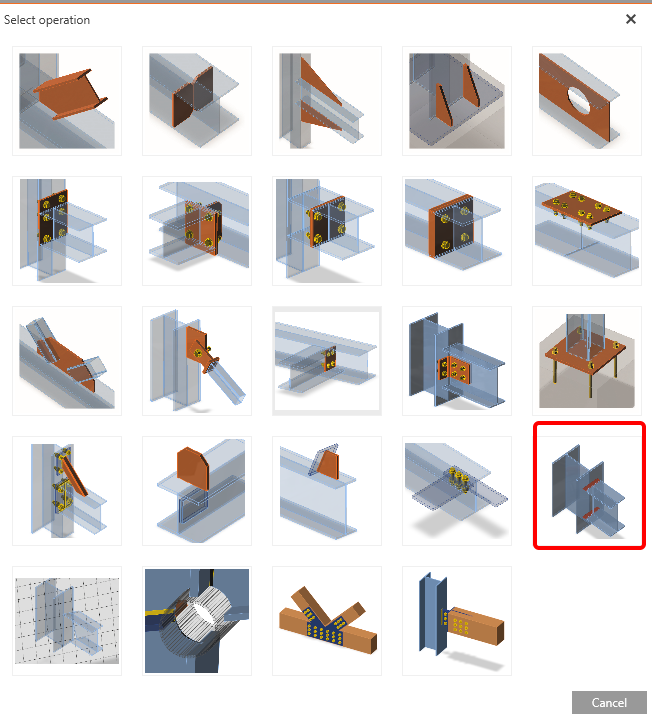
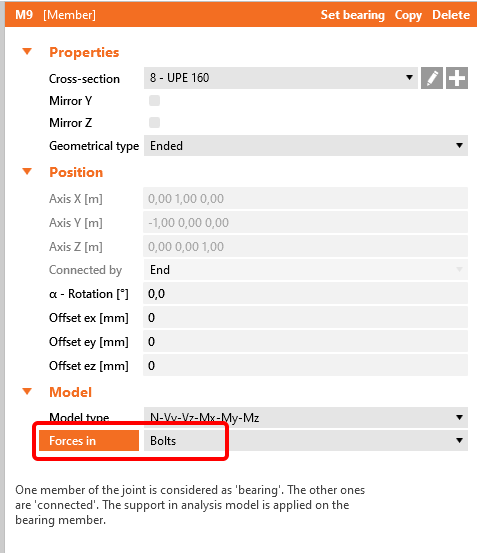
To have a correct position of the loads, select member M9 and change in Model the position of the Forces to Bolts. See more about the correct load position.
The last Operation you have to apply is the Gusset plate operation to connect the diagonal.
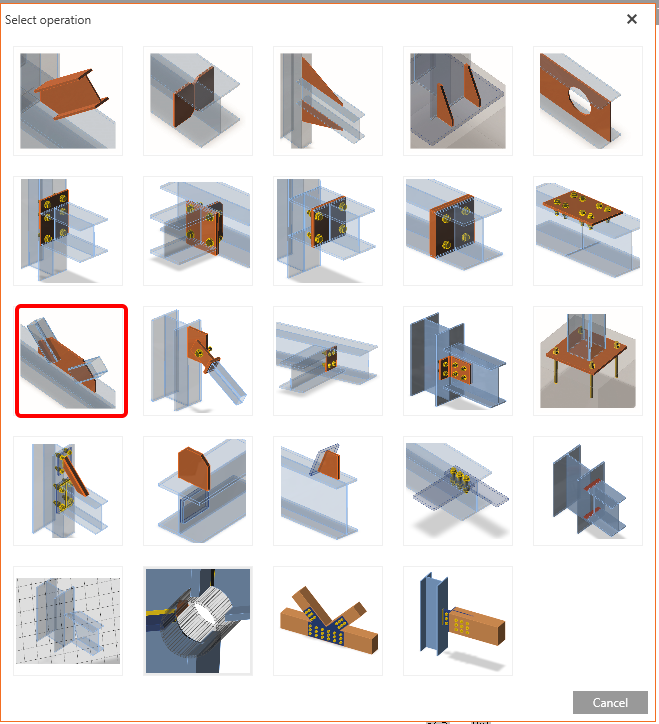
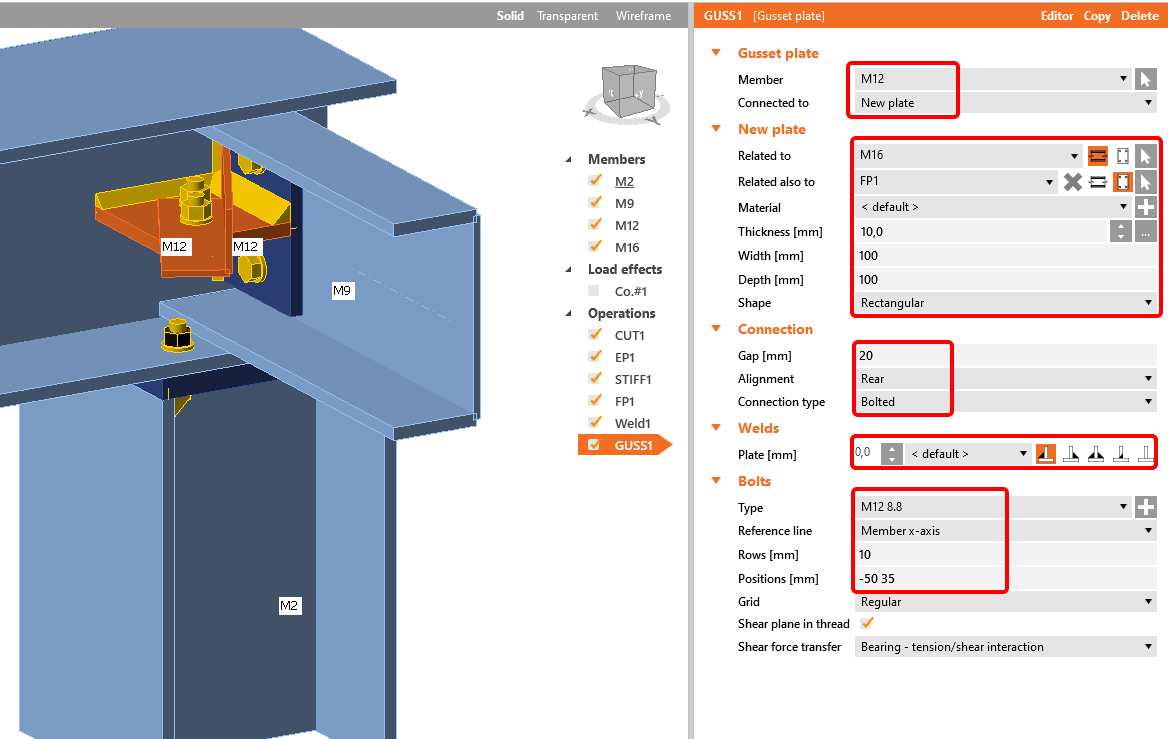
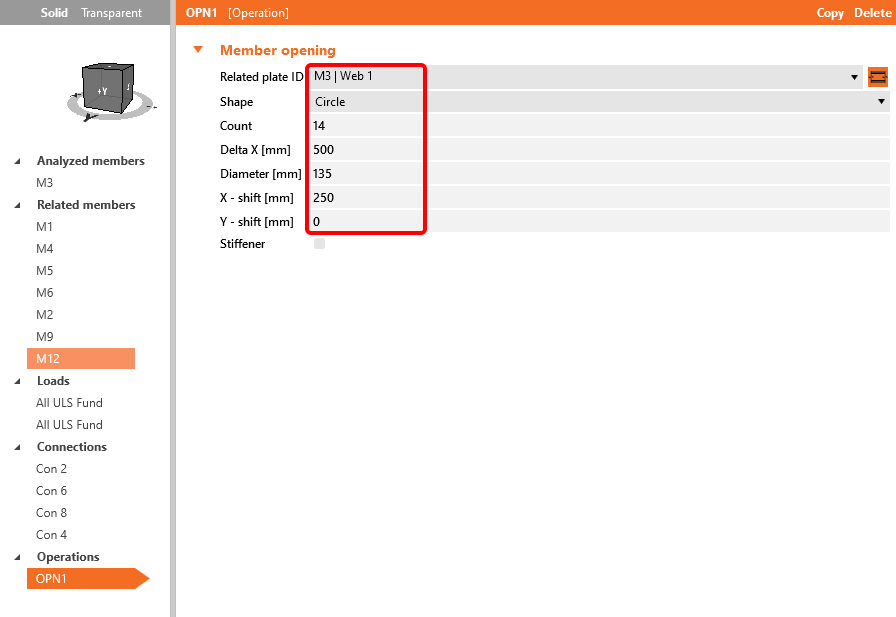
The last operation in Member, you will apply are openings along with the member M3
4 Analysis
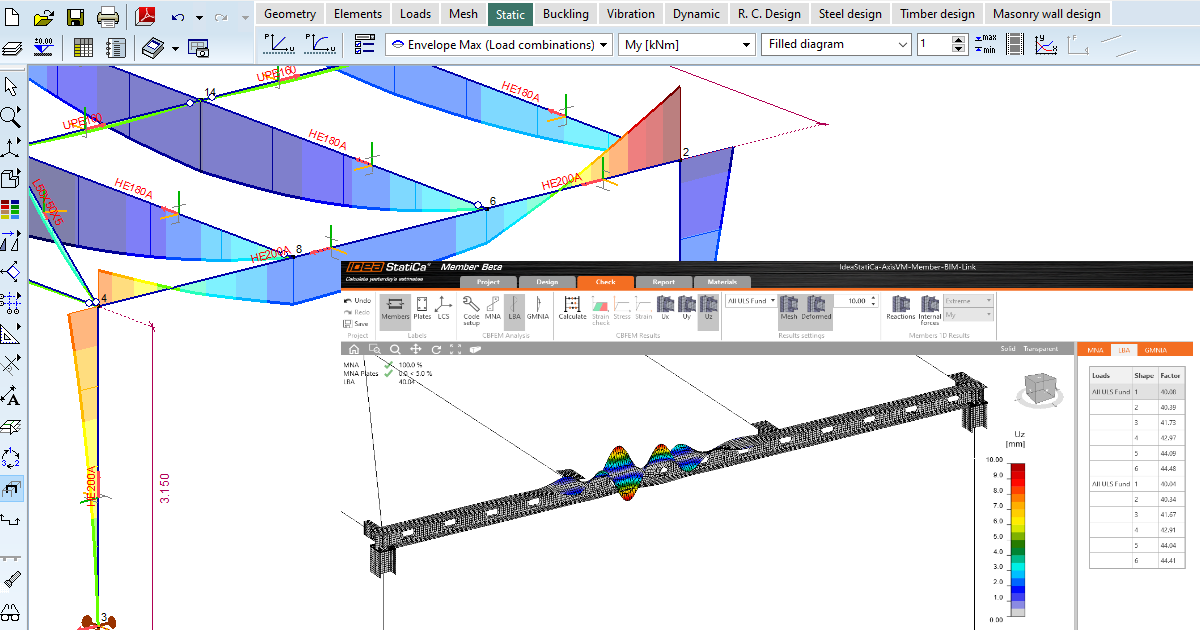
When finishing with the design of all joints, start the linear analysis by clicking on MNA and Calculate in the Tab Check.
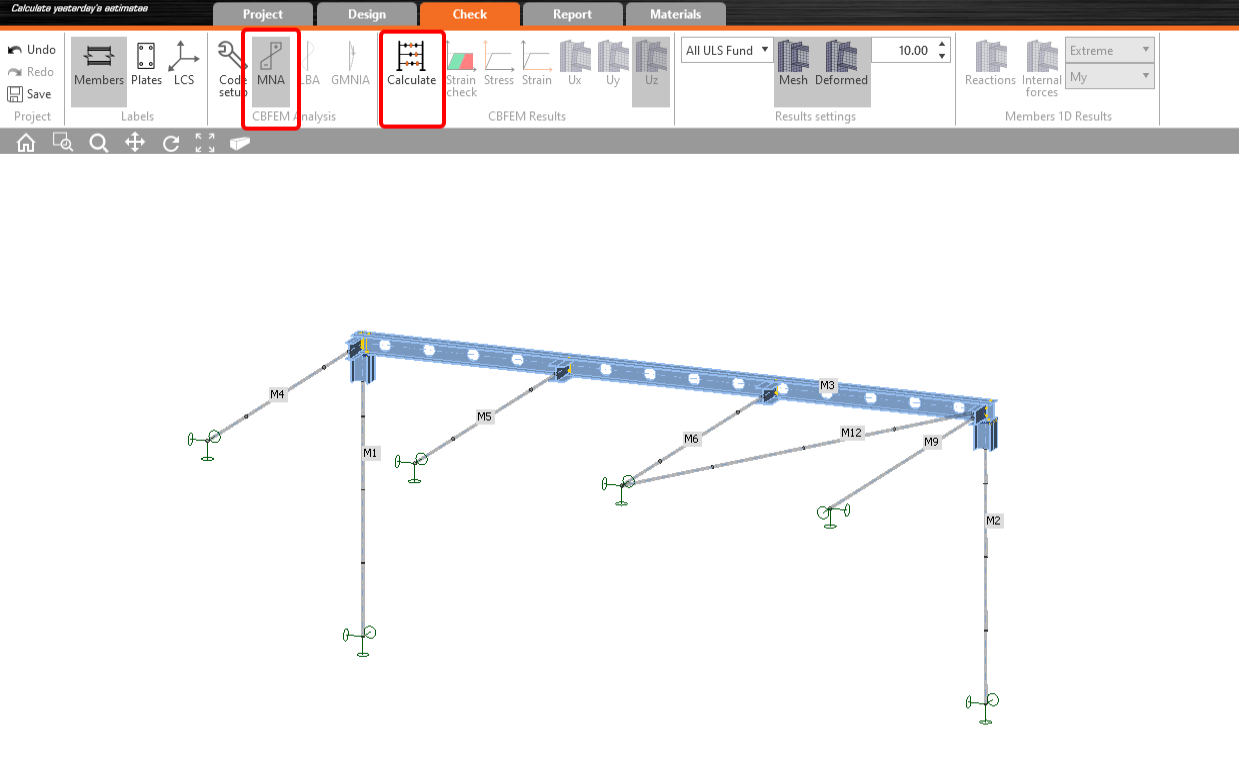
The results look like here in the picture:
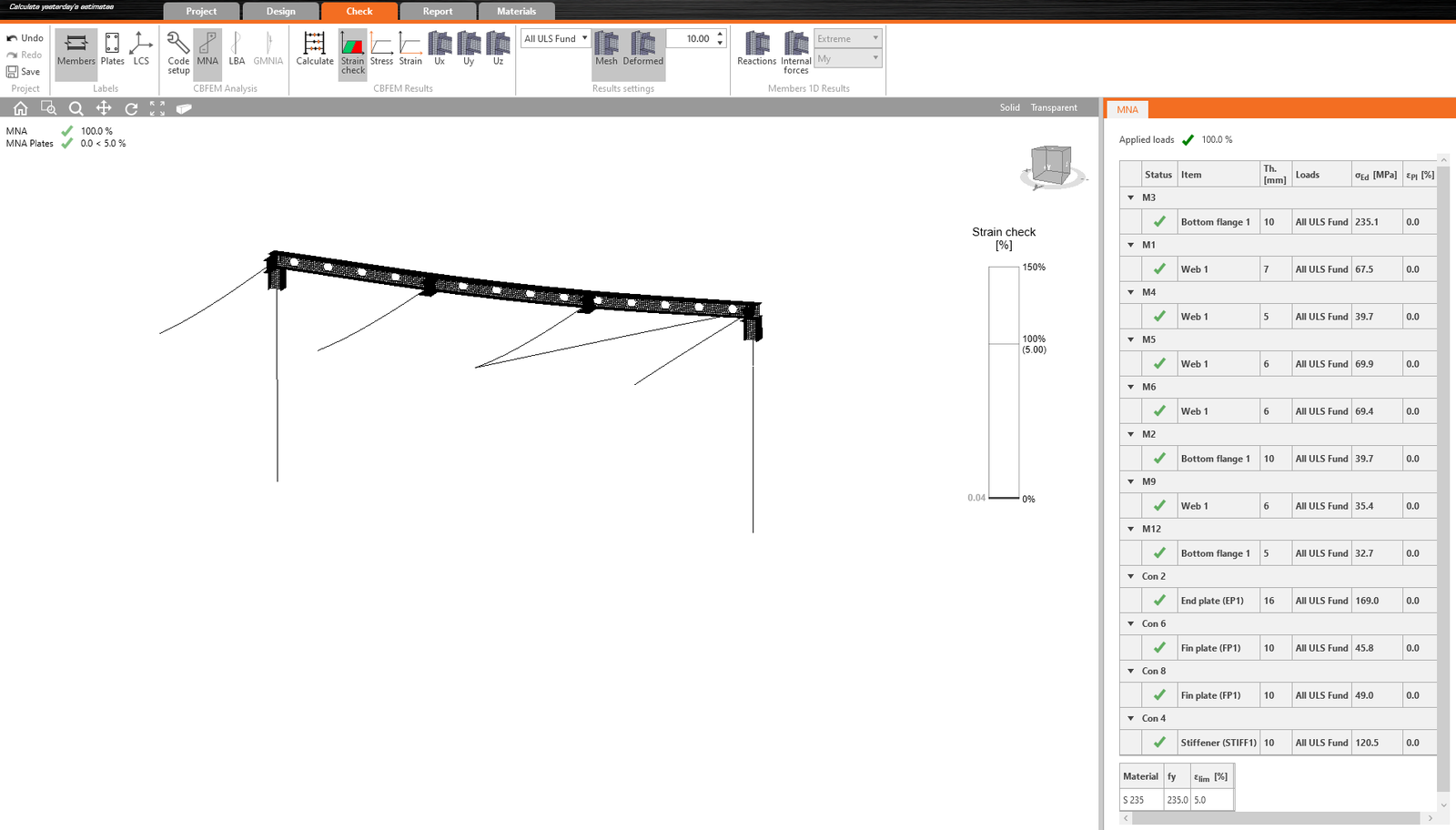
The next analysis is the Linear Buckling Analysis, so just click on LBA and Calculate.
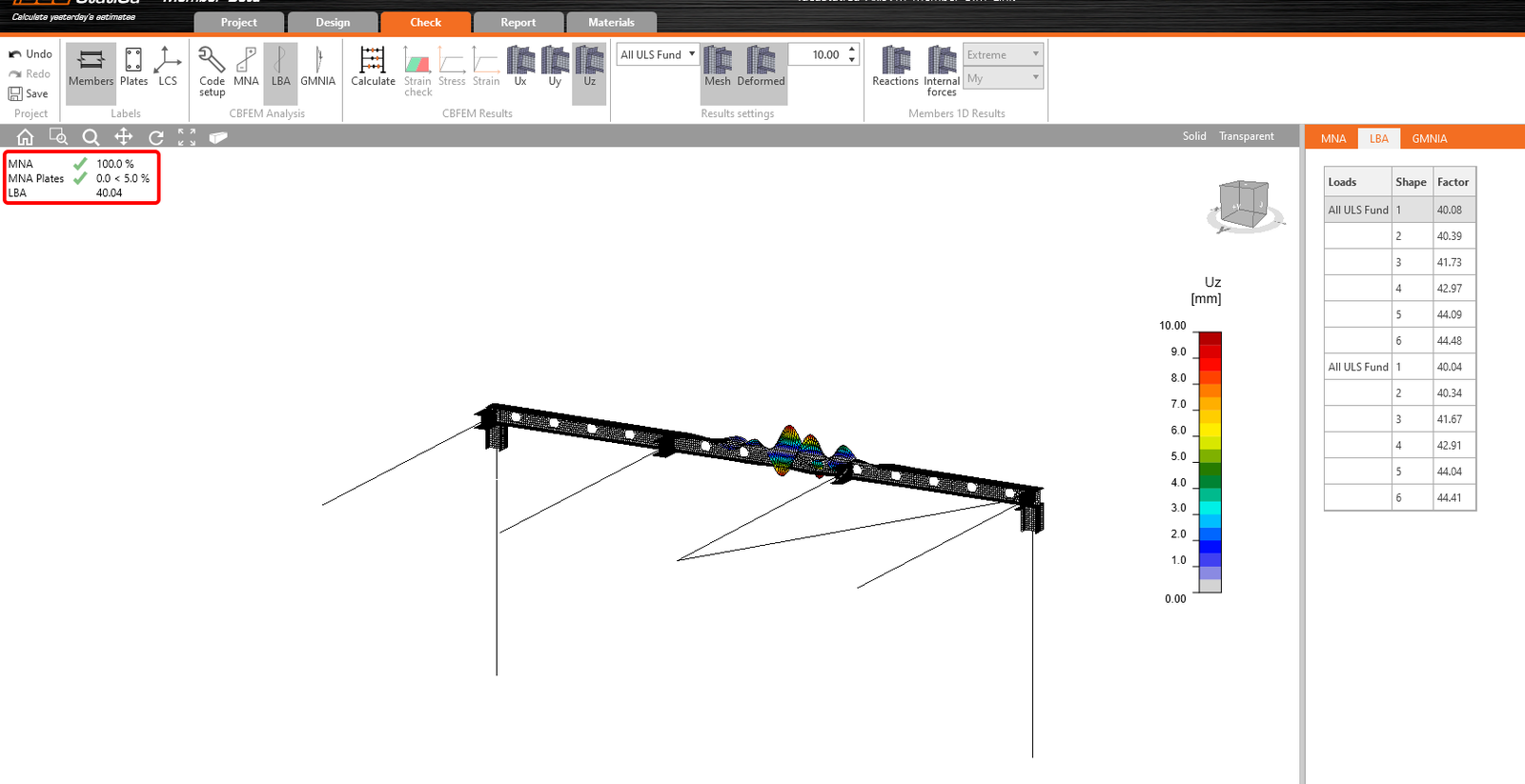
As you can see, the result of this analysis is greater than 15, so it is not necessary to continue with the Geometrically and materially nonlinear analysis. To learn more, see the article about imperfections or the Theoretical background.
5 Report
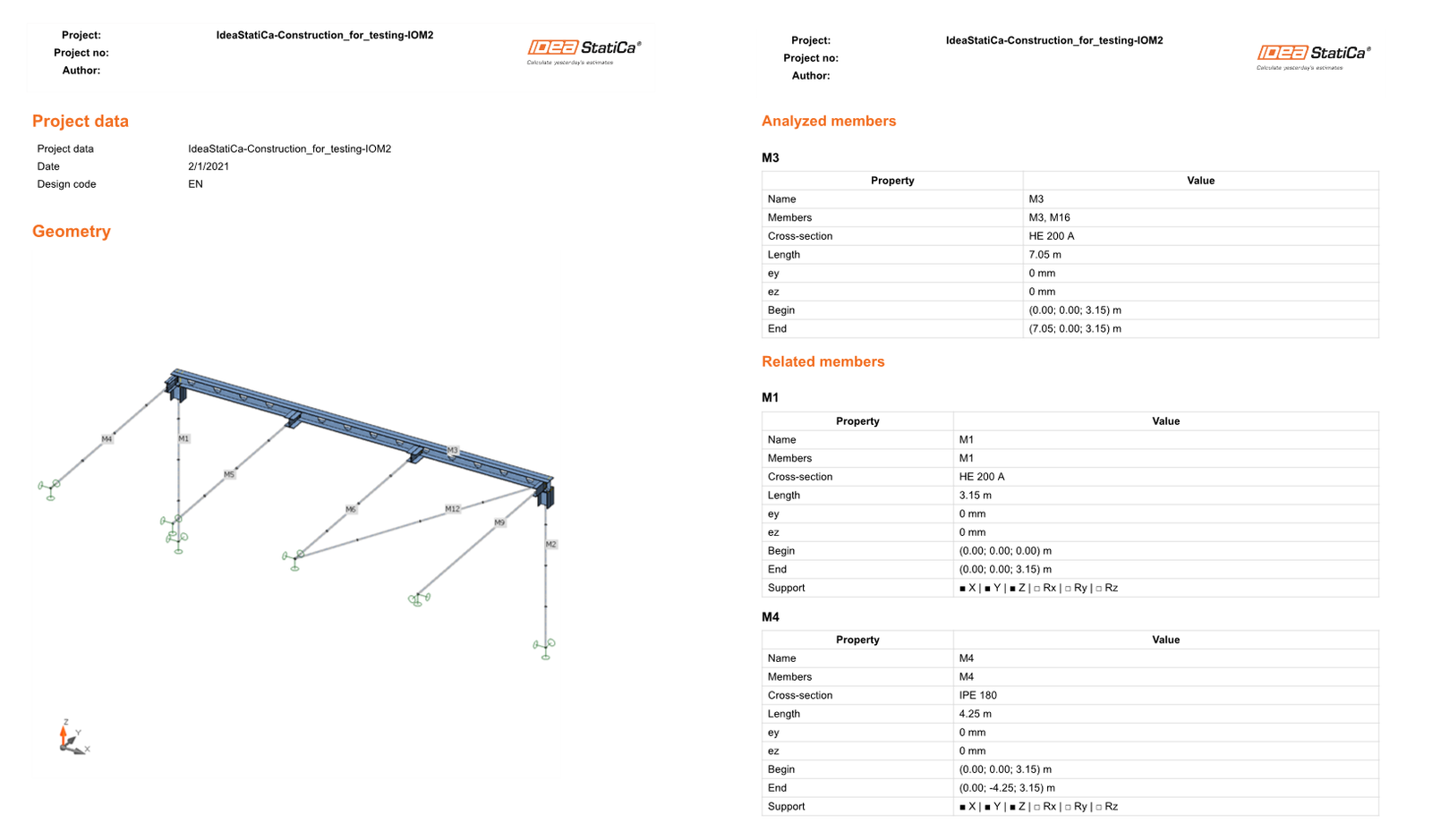
At last, go to the tab Report. IDEA StatiCa offers a fully customizable report to print out or save in an editable format.
Learn how to use IDEA StatiCa effectively with our self-paced e-learning courses
Start learning